
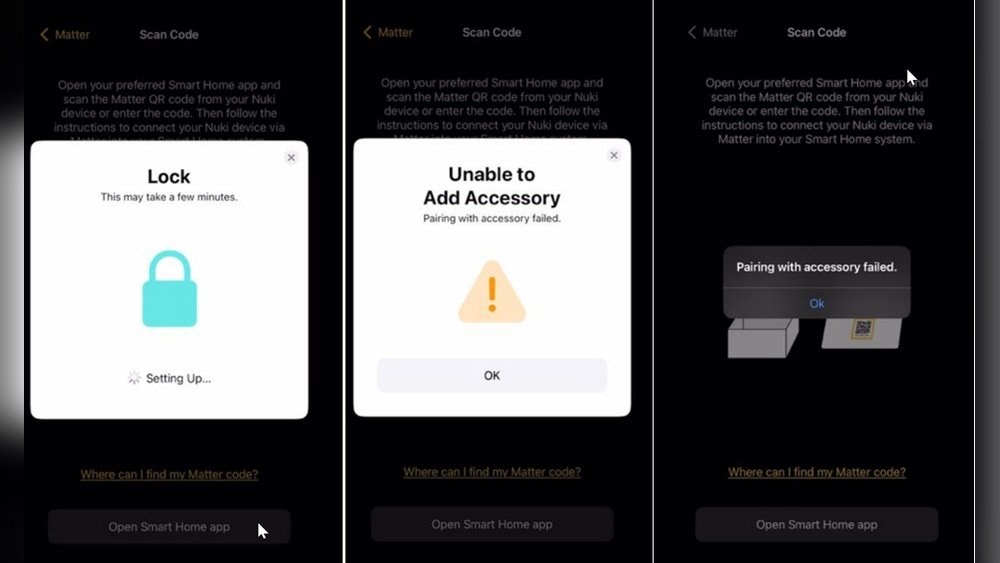
The advent of smart home technology has transformed how we secure and manage our living spaces. Among the most popular innovations are smart locks, offering convenience and enhanced security features. However, like any technology, smart locks can sometimes encounter issues. One particularly frustrating problem is when a Matter device fails to connect or function correctly, leading to a need for a smart lock reset. This guide will walk you through the process of resetting your Matter-enabled smart lock when it falters, ensuring you can regain control and peace of mind.
The Matter protocol promises a future of seamless interoperability between smart home devices from different manufacturers. Yet, in these early stages, glitches and connection problems are not uncommon. When your Matter smart lock stops responding, enters an unresponsive state, or simply won’t pair, a factory reset is often the most effective solution. This process reverts the lock to its original settings, clearing any software conflicts or corrupted data that might be causing the malfunction. Understanding how to perform this reset is crucial for any smart lock owner.
Key Takeaways
- A smart lock reset is often necessary when a Matter device fails to connect, respond, or function correctly.
- The reset process typically involves a physical button or a sequence of actions on the lock itself.
- Always consult your specific smart lock’s manual, as reset procedures vary significantly by manufacturer and model.
- Before resetting, try simpler troubleshooting steps like restarting your router, checking Wi-Fi, and updating firmware.
- A factory reset will erase all custom settings, user codes, and network configurations, requiring a full re-setup.
- Ensure you have your Matter controller (e.g., Apple Home app, Google Home app) ready for re-pairing after the reset.

Credit: matter-smarthome.de
Understanding Matter And Smart Lock Connectivity
The Matter protocol is designed to simplify smart home integration by providing a standardized communication layer. It aims to allow devices from different brands to work together seamlessly, regardless of the underlying Wi-Fi or Thread network. For smart locks, this means that a lock from one manufacturer should theoretically work with a Matter controller (like an Apple HomePod or Google Nest Hub) from another. However, the journey to universal compatibility is ongoing.
When a Matter device fails, it can stem from several points in the connection chain. This could involve an issue with the smart lock itself, the Matter controller, the home Wi-Fi network, or the Thread border router if the lock uses Thread for communication. The complexity of these interconnected systems means that troubleshooting can sometimes be challenging. A smart lock reset acts as a hard reboot, clearing the device’s internal state and preparing it for a fresh start.
Common Reasons For Matter Device Failure
Several factors can lead to a Matter smart lock becoming unresponsive or failing to connect:
- Network Instability: Frequent Wi-Fi drops, a weak signal, or changes to your network (like a new router or password) can disrupt the lock’s connection.
- Firmware Glitches: Bugs or errors in the lock’s firmware, or in the Matter controller’s software, can cause unexpected behavior.
- Interference: Other wireless devices operating on the same frequencies (2.4 GHz for Wi-Fi and Thread) can sometimes cause interference.
- Power Issues: Low battery levels or a faulty power source (for battery-powered locks) can lead to intermittent performance or complete failure.
- Matter Controller Issues: Problems with the Apple Home app, Google Home app, or other Matter controllers can prevent devices from being recognized or controlled.
- Factory Reset Required: In some cases, the only way to resolve persistent software conflicts or unrecoverable errors is through a factory reset.
The Role Of The Matter Controller
Your Matter controller is the central hub that manages your Matter-enabled devices. This could be a smartphone app like Apple Home, Google Home, or Samsung SmartThings, or a dedicated smart home hub. When your smart lock fails, the controller is often the first place you’ll notice it, showing the device as offline or unresponsive. The controller also plays a critical role in the re-setup process after a reset. It’s responsible for discovering the lock and re-establishing its connection within your Matter ecosystem.

Credit: inoxoft.com
Preparing For A Smart Lock Reset
Before diving into a factory reset, it’s essential to prepare adequately. A reset is a drastic step that erases all user data and settings. Proper preparation ensures a smoother re-setup process and minimizes potential data loss.
Essential Pre-reset Checks
Always attempt these simpler troubleshooting steps before resorting to a factory reset:
- Check Batteries: Ensure your smart lock has fresh, fully charged batteries. Low battery power is a common culprit for erratic behavior.
- Verify Wi-Fi/Network Connection: Confirm that your home Wi-Fi network is operational and that the lock is within a strong signal range. Rebooting your router and modem can often resolve temporary network glitches.
- Restart the Matter Controller: Close and reopen the smart home app you use (e.g., Apple Home, Google Home) on your smartphone or tablet. If the controller is a physical hub, try restarting it.
- Check for Firmware Updates: Look for any available firmware updates for your smart lock, your Matter controller, or your Wi-Fi router. Updates often contain bug fixes that can resolve connectivity issues.
- Review Lock Status: Examine the lock for any physical indicators of malfunction, such as error lights or unusual sounds.
Documenting Your Settings
A factory reset will wipe all custom configurations. To expedite the re-setup, it’s wise to document important information beforehand:
- Wi-Fi Network Name (SSID) and Password: You’ll need these to reconnect the lock to your network.
- User Codes: If you have multiple users with unique entry codes, make a list of these codes. You’ll need to re-enter them after the reset.
- Administrator/Owner Account Details: Note down the login credentials for the app or service associated with your smart lock.
- Matter Pairing Information: If your lock uses a Matter setup code or QR code, keep it handy.
Understanding The Impact Of A Reset
It’s crucial to understand what a factory reset entails:
- Data Erasure: All user codes, access logs, and custom settings will be deleted.
- Network Reconfiguration: The lock will be removed from your Wi-Fi network and will need to be re-added.
- Matter Re-pairing: The lock will be removed from your Matter controller and will require a new pairing process.
- Security Implications: For a brief period, the lock may be in an unsecured state during the reset and re-pairing process. Ensure you are present and can physically secure your door.

Credit: www.reddit.com
Performing A Smart Lock Reset: Step-by-step
The exact procedure for resetting a smart lock varies significantly between manufacturers and models. Always refer to your specific device’s user manual for the most accurate instructions. However, most resets involve a combination of physical actions on the lock itself.
Locating The Reset Button
The reset button is typically a small, recessed button that requires a pin or a paperclip to press. It’s often found:
- On the back of the lock’s interior unit: This is the most common location, accessible after removing the battery cover.
- On the circuit board: Sometimes, you might need to remove the entire interior assembly to access the circuit board where the reset button is located.
- Integrated into a battery terminal: Less commonly, the reset mechanism might be tied to how the batteries are inserted.
General Reset Procedures (examples)
While specific steps differ, here are common patterns observed in Matter smart lock resets:
Scenario 1: Button Press During Power-on
- Remove Batteries: Open the battery compartment and remove all batteries.
- Locate Reset Button: Find the reset button on the interior unit or circuit board.
- Press and Hold: Insert a paperclip or pin into the reset button and press and hold it.
- Reinsert Batteries: While still holding the reset button, reinsert the batteries.
- Continue Holding: Keep holding the reset button for a specified duration (often 10-30 seconds), or until you hear a beep, see an LED flash, or the lock performs a self-test cycle.
- Release Button: Release the button and allow the lock to power up and initialize.
Scenario 2: Button Press Sequence
- Remove Batteries: Open the battery compartment and remove all batteries.
- Locate Reset Button: Identify the reset button.
- Press and Release (Multiple Times): Some locks require you to press and release the reset button a specific number of times (e.g., 3 or 5 times) in quick succession.
- Reinsert Batteries: After performing the button sequence, reinsert the batteries.
- Confirmation: Listen for an audible cue or watch for an LED indicator that confirms the reset has been initiated.
Scenario 3: Reset Via App (less Common For Hard Resets)
While some minor resets or network reconfigurations might be possible through the manufacturer’s app or the Matter controller, a true factory reset usually requires physical interaction with the lock. If your lock offers a software reset option, ensure it’s a full factory reset and not just a network reset.
Pro Tip: If you cannot find the reset button or are unsure about the procedure, always consult the official user manual for your specific smart lock model. You can usually find a PDF version on the manufacturer’s website.
Post-reset Steps: Re-pairing Your Matter Lock
Once the reset is complete, your smart lock will be back to its factory default state. This means it will no longer be connected to your Wi-Fi network or paired with your Matter controller. You’ll need to go through the setup process again.
- Open Your Matter Controller App: Launch the Apple Home app, Google Home app, or your preferred Matter-compatible application.
- Add Device: Look for an option to “Add Device,” “Set up new device,” or similar.
- Scan QR Code or Enter Code: The app will prompt you to scan the Matter setup QR code found on your lock (usually on the back or in the manual) or enter the setup code manually.
- Follow On-Screen Instructions: The app will guide you through connecting the lock to your Wi-Fi network (if applicable) and pairing it with your Matter ecosystem. This may involve selecting your Wi-Fi network and entering the password.
- Configure Settings: Once paired, you’ll need to reconfigure settings such as user codes, auto-lock preferences, and notification settings.
Troubleshooting Persistent Issues After Reset
In rare cases, even after a factory reset, your Matter smart lock might continue to exhibit problems. This suggests a more complex issue that requires further investigation.
Deep Dive Into Network Configuration
If the lock fails to re-pair or frequently drops connection after a reset, scrutinize your network setup:
- 2.4 GHz Band: Ensure your Wi-Fi network is broadcasting on the 2.4 GHz frequency band, as most smart home devices, including Matter locks, rely on this band for initial setup and stable operation. Some routers combine 2.4 GHz and 5 GHz bands under a single SSID, which can sometimes confuse devices. Consider temporarily separating them or ensuring the 2.4 GHz band is enabled and has a strong signal where the lock is installed.
- Router Settings: Check for any router settings that might block new device connections, such as MAC address filtering or strict firewall rules.
- Thread Border Router: If your lock uses Thread for communication (often alongside Wi-Fi), ensure your Thread border router (e.g., Apple HomePod mini, Google Nest Hub (2nd gen), Amazon Echo (4th gen)) is functioning correctly and is within range.
Checking For Hardware Malfunctions
If software and network troubleshooting don’t resolve the issue, consider potential hardware problems:
- Physical Lock Mechanism: Ensure the deadbolt itself isn’t sticking or obstructed, which could be causing the motor or electronics to strain and fail.
- Wiring: For locks with external wiring or power adapters, check for any damage or loose connections.
- Internal Components: While difficult to diagnose without specialized tools, internal component failure is a possibility.
Example Case Study: A user reported their August Wi-Fi Smart Lock (which supports Matter) repeatedly failing to connect after a network change. Despite multiple resets and network reconfigurations, the lock remained offline. Upon closer inspection, it was discovered that the lock’s internal Wi-Fi antenna connection had become slightly dislodged during a battery change. Reseating the antenna resolved the issue. This highlights the importance of considering physical aspects alongside software.
Contacting Manufacturer Support
If you’ve exhausted all troubleshooting steps, including the factory reset, and your Matter smart lock still fails, it’s time to contact the manufacturer’s customer support. They may be aware of specific issues with your model or be able to guide you through more advanced diagnostics. Be prepared to provide them with:
- Your smart lock’s model number and serial number.
- The troubleshooting steps you’ve already taken.
- Details about your Matter controller and home network setup.
- Any error messages or specific symptoms you’re experiencing.
Smart Lock Reset Vs. Other Troubleshooting Methods
It’s important to differentiate a factory reset from other troubleshooting actions. A reset is a last resort, while other methods should be attempted first.
Comparison Of Troubleshooting Steps
| Action | Description | When to Use | Impact on Settings |
|---|---|---|---|
| **Restart Device** | Power cycling the lock (removing batteries briefly) or rebooting the Matter controller. | Device unresponsive, minor glitches. | None |
| **Check Network** | Verifying Wi-Fi signal strength, router status, and internet connectivity. | Lock offline, slow response times. | None |
| **Update Firmware** | Installing the latest software updates for the lock and controller. | Known bugs, compatibility issues, security vulnerabilities. | None |
| **Re-pair Device** | Removing the lock from the Matter controller and re-adding it without a full factory reset (if supported). | Connection lost, controller issues. | May reset network config |
| **Factory Reset** | Restoring the lock to its original, out-of-the-box state via a physical button or sequence. | Persistent unresponsiveness, software corruption, failed re-pairing. | **All settings erased** |
| **Contact Support** | Reaching out to the manufacturer for advanced assistance or warranty claims. | All other troubleshooting fails, suspected hardware defect. | N/A |
When A Reset Is The Only Option
A factory reset is typically the only way to resolve deep-seated software conflicts or corrupted configurations that cannot be cleared through simpler means. If your lock is stuck in an error state, refuses to pair, or exhibits unpredictable behavior despite network checks and restarts, a reset is often the most efficient path to restoring functionality.
Advanced Considerations For Matter Smart Locks
The Matter standard is still evolving, and users might encounter unique challenges specific to its implementation in smart locks.
Understanding Matter Pairing Modes
Matter devices can be paired using Wi-Fi or Thread. Smart locks often utilize Wi-Fi for direct connection to your home network, but Thread can provide a more robust mesh network for devices that are not in direct Wi-Fi range. Ensure your Thread border router is properly configured if your lock relies on Thread.
A reset will force the lock to go through the pairing process again, allowing you to choose or confirm its network protocol.
The Importance Of A Stable Ecosystem
A stable smart home ecosystem is crucial for Matter devices. This includes:
- Reliable Wi-Fi: A strong, stable Wi-Fi network is the foundation. Mesh Wi-Fi systems can be beneficial for larger homes.
- Updated Controllers: Keeping your Matter controller apps and any associated hubs updated is essential for compatibility and performance. According to the CSA (Connectivity Standards Alliance), regular updates are key to maintaining a robust Matter network. You can find more details on the Connectivity Standards Alliance website.
- Thread Border Router Health: If using Thread, ensure your border router is powered on, connected to your network, and running the latest firmware.
Security Implications Of Resetting
When you reset your smart lock, it temporarily reverts to an unauthenticated state. This means anyone could potentially try to pair with it if they have physical access and know the Matter pairing code.
- Physical Security: Perform the reset and re-pairing process when you are physically present and can secure your door.
- Secure Pairing Code: Keep your Matter setup code secure. It’s typically found on the device itself or in the documentation. Do not share it unnecessarily.
- Immediate Re-pairing: Once the reset is complete, prioritize re-pairing the lock with your Matter controller to secure it again.
Frequently Asked Questions
What Should I Do If My Matter Smart Lock Is Completely Unresponsive?
If your Matter smart lock is completely unresponsive, meaning it doesn’t light up, make noise, or react to commands, start by checking the batteries. Ensure they are new and inserted correctly. If the batteries are fine, try removing them for a minute and then reinserting them. If this doesn’t help, proceed with the factory reset procedure specific to your lock model, as described in its manual.
How Long Does A Matter Smart Lock Factory Reset Typically Take?
The reset process itself, involving pressing buttons and reinserting batteries, usually takes only a minute or two. However, the subsequent re-pairing process with your Matter controller can take anywhere from 5 to 15 minutes, depending on your network speed and the efficiency of the controller app.
After re-pairing, configuring settings like user codes can add additional time.
Will Resetting My Matter Smart Lock Erase My Apple Homekit Or Google Home Data?
Yes, a factory reset of the smart lock itself will erase all its stored data, including any unique identifiers or configurations related to Apple HomeKit or Google Home. After the reset, the lock will be treated as a brand new device, and you will need to re-add it to your Apple Home or Google Home app, essentially re-pairing it within that ecosystem. Your data within the HomeKit or Google Home app itself (like room assignments for other devices) will remain intact, but the lock’s connection to it will be severed and need to be re-established.
Can I Reset My Matter Smart Lock Without Physical Access To The Device?
Generally, no. A factory reset for a smart lock is designed to be a deliberate action, often requiring physical interaction with the device itself (e.g., pressing a hidden button). This is a security measure to prevent unauthorized resets. While some minor settings or network configurations might be adjustable remotely via an app, a full hardware reset typically requires hands-on access.
What If The Matter Setup Code Or Qr Code Is Lost?
If you’ve lost the Matter setup code or QR code for your smart lock, you might still be able to reset and re-pair the device, but it can be more challenging. Some manufacturers provide a way to retrieve or regenerate the code through their support channels or a secondary method on the lock itself.
However, without the code, re-pairing the device as a Matter accessory might become impossible. Check your lock’s manual or contact the manufacturer’s support for guidance on lost pairing credentials. In some instances, if the lock doesn’t explicitly require the code for re-pairing after a reset (which is rare for Matter), you might get lucky, but assume you will need it.
When your Matter-enabled smart lock encounters issues and requires a reset, remember that preparation and adherence to your device’s specific instructions are key. While the process can seem daunting, it’s a vital tool for restoring functionality and ensuring your home remains secure and connected. By understanding the steps involved and potential pitfalls, you can confidently tackle a smart lock reset and get your Matter device back online.