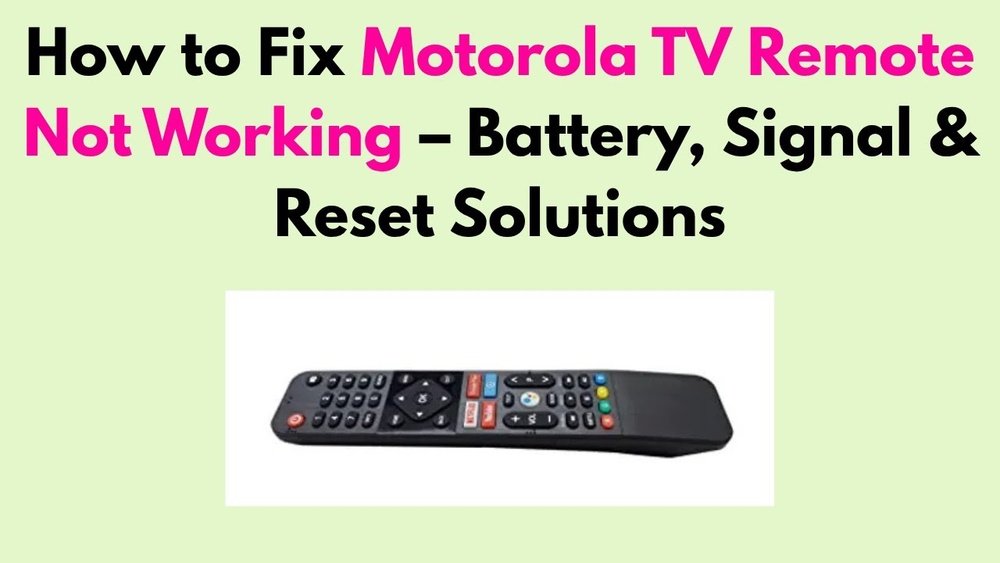
The frustration of a Motorola TV remote not working can bring your entertainment to a grinding halt. Whether you’re trying to catch up on your favorite show, switch to a different channel, or adjust the volume, a malfunctioning remote renders your smart TV practically useless. This common issue can stem from a variety of causes, ranging from simple battery problems to more complex internal glitches. Understanding these potential culprits and knowing how to systematically troubleshoot them is key to getting your Motorola TV back under your command.
This comprehensive guide will walk you through the most common reasons why your Motorola TV remote might be unresponsive and provide step-by-step solutions to get it working again. We’ll cover everything from checking batteries and eliminating interference to performing factory resets and understanding when it might be time for a replacement.
By the end of this article, you’ll be equipped with the knowledge to diagnose and resolve most Motorola TV remote issues, saving you time, money, and the annoyance of a non-functional device.
Key Takeaways
- Battery Check: The most frequent cause of a non-working remote is dead or improperly inserted batteries. Always start here.
- Obstruction & Interference: Ensure a clear line of sight between the remote and the TV’s IR sensor, and check for other electronic devices causing interference.
- Remote Pairing: For Bluetooth or voice remotes, re-pairing the remote with your TV is often necessary after a power outage or software update.
- TV Power Cycle: A simple reboot of the TV itself can resolve temporary software glitches affecting remote communication.
- Remote Reset: Many remotes have a reset mechanism that can clear internal errors and restore functionality.
- Check the IR Sensor: Ensure the infrared (IR) sensor on both the remote and the TV is clean and unobstructed.
- Test the Remote: Use a smartphone camera to verify if the remote’s IR emitter is sending a signal.
- Replacement Options: If all troubleshooting fails, consider replacing the batteries, the remote itself, or exploring universal remote solutions.

Credit: www.youtube.com
Understanding Your Motorola Tv Remote
Before diving into troubleshooting, it’s helpful to understand the different types of Motorola TV remotes and how they communicate with your television. Most modern smart TVs, including those from Motorola, utilize one of two primary communication methods: Infrared (IR) or Bluetooth. Some advanced remotes also incorporate voice control capabilities, which rely on Bluetooth and a built-in microphone.
Infrared (IR) Remotes: These are the traditional remotes that emit an invisible beam of infrared light. For an IR remote to work, there must be a clear line of sight between the remote’s emitter and the TV’s IR receiver. This is why obstructions like furniture or even smudges on the TV screen can sometimes cause issues. The signal is essentially a series of light pulses that the TV decodes.
Bluetooth Remotes: Bluetooth remotes do not require a direct line of sight. They establish a wireless connection with the TV, similar to how your smartphone connects to wireless headphones. This offers more flexibility in how you hold the remote and can be more reliable in environments with potential IR interference. However, Bluetooth remotes can sometimes lose their pairing with the TV, requiring a re-pairing process.
Voice Remotes: These remotes combine Bluetooth connectivity with a microphone. When you press a voice button, the remote sends your spoken command via Bluetooth to the TV, which then processes the command. Issues with voice remotes can sometimes be related to the Bluetooth connection, the microphone, or the TV’s voice recognition software.
Identifying which type of remote you have is the first step in diagnosing the problem. Most Motorola remotes will have a small, dark window at the top for IR remotes, or no visible emitter for Bluetooth models. Refer to your TV’s user manual if you’re unsure.

Credit: www.youtube.com
Troubleshooting Common Motorola Tv Remote Issues
When your Motorola TV remote suddenly stops working, it’s easy to feel frustrated. However, most issues can be resolved with a systematic approach. We’ll break down the most common problems and provide clear steps to fix them.
1. Battery Problems: The Usual Suspect
This is by far the most common reason for a remote to stop working. Batteries can lose their charge, become corroded, or be inserted incorrectly.
- Replace the Batteries: Always start by replacing the batteries with a fresh set. Ensure you use the correct type of batteries (usually AA or AAA) as specified by your remote’s manual. Never mix old and new batteries, or different types of batteries, as this can lead to leakage and damage.
- Check Battery Orientation: Double-check that the batteries are inserted correctly, paying close attention to the positive (+) and negative (-) markings inside the battery compartment. Even a slight misalignment can prevent the remote from functioning.
- Clean Battery Terminals: If you notice any corrosion (a powdery or crystalline substance) on the battery terminals or inside the compartment, gently clean them. You can use a pencil eraser or a cotton swab lightly dampened with isopropyl alcohol (rubbing alcohol). Ensure the terminals are completely dry before inserting new batteries.
- Secure Battery Cover: Make sure the battery cover is securely fastened. A loose cover can sometimes interrupt the connection.
2. Obstructions And Line Of Sight Issues (ir Remotes)
For IR remotes, a clear path to the TV is crucial.
- Clear the Path: Ensure there are no objects physically blocking the signal between the remote and the TV’s IR receiver. This includes remote controls, decorations, or even the position of the remote itself relative to the TV.
- Clean the TV’s IR Sensor: The IR sensor on your TV is usually a small, dark, semi-transparent window located on the front panel, often near the power indicator light. Dust, grime, or screen protectors can obstruct this sensor. Gently clean it with a soft, dry microfiber cloth. Avoid using abrasive materials or harsh cleaners, as this could damage the sensor.
- Test IR Signal with a Camera: You can perform a quick test to see if your remote is emitting an IR signal.
- Open the camera app on your smartphone.
- Point the emitter end of your Motorola TV remote towards the phone’s camera lens.
- Press and hold any button on the remote.
- Look at your phone’s screen. If the remote is working, you should see a faint pink or purple light being emitted from the remote’s tip. This light is in the infrared spectrum and is visible to most digital cameras.
- If you do not see any light, the remote is likely not sending a signal, indicating a problem with the batteries, the remote itself, or its internal components. If you see light, the issue might be with the TV’s receiver or a more complex TV malfunction.
3. Interference From Other Devices
Electronic devices can sometimes interfere with the signals from your remote.
- Identify Potential Sources: Devices that emit strong electromagnetic fields, such as fluorescent lights, microwaves, other remote controls (especially universal remotes not programmed correctly), or even certain types of LED lighting, can sometimes disrupt remote signals.
- Temporarily Remove Suspect Devices: Try turning off or moving any potentially interfering devices away from the TV and remote to see if the problem resolves. If the remote starts working, you’ve likely found the source of interference.
4. Bluetooth Pairing Issues (bluetooth And Voice Remotes)
If your Motorola TV remote uses Bluetooth, it might have lost its pairing with the TV.
- Re-Pair the Remote: The process for re-pairing varies by Motorola TV model, but it generally involves a sequence of button presses on the remote and navigating through the TV’s settings.
- Common Method: Often, you need to press and hold a specific combination of buttons on the remote (e.g., Back and Home, or Volume Down and Mute) for several seconds while near the TV. Consult your TV’s user manual for the exact procedure for your model.
- TV Settings: You might also need to go into your TV’s settings menu (using the physical buttons on the TV if the remote is completely unresponsive) and look for an option like “Remote Control,” “Bluetooth Devices,” or “Add Device” to initiate the pairing process.
- Ensure Proximity: During the pairing process, make sure the remote is within close proximity (usually within 1-3 feet) of the TV.
- Check TV’s Bluetooth: Ensure that Bluetooth is enabled on your TV. This setting is typically found within the network or connectivity options in the TV’s settings menu.
5. Remote Reset Procedure
Some remotes have a built-in reset function that can clear temporary glitches.
- Remove Batteries: The simplest form of reset involves removing the batteries from the remote for at least 30 seconds to a minute. This allows any residual power to dissipate, effectively resetting the remote’s internal circuitry. Reinsert the batteries and test again.
- Specific Reset Buttons: Some advanced remotes might have a small, recessed reset button that requires a paperclip to press. Check your remote’s design and your TV’s manual for any such features.

Credit: www.youtube.com
Advanced Troubleshooting Steps
If the basic troubleshooting steps haven’t resolved the issue, it’s time to explore more advanced solutions. These steps may involve interacting more directly with your TV or considering the possibility of a faulty remote or TV component.
1. Power Cycle Your Motorola Tv
A simple power cycle can resolve many temporary software glitches that might be preventing the TV from communicating with the remote.
- Unplug the TV: Disconnect the TV’s power cord directly from the wall outlet. Do not just turn it off using the power button or the remote.
- Wait: Leave the TV unplugged for at least 60 seconds. This ensures that all residual power is drained from the TV’s internal components, performing a hard reset.
- Press and Hold Power Button (Optional but Recommended): While the TV is unplugged, press and hold the physical power button on the TV itself for about 15-30 seconds. This helps to discharge any remaining electricity in the TV’s capacitors.
- Plug Back In: Reconnect the power cord to the wall outlet.
- Turn On TV: Power on the TV using the physical power button on the TV set.
- Test Remote: Once the TV has fully booted up, try using the remote again.
2. Check Physical Buttons On The Tv
Your Motorola TV should have physical buttons for basic functions like power, volume, and channel control.
- Locate Buttons: These are typically found on the back, side, or bottom edge of the TV.
- Test Basic Functions: Use these physical buttons to turn the TV on, adjust the volume, and change channels. If these buttons work, it confirms that the TV itself is functioning correctly, and the problem is likely isolated to the remote or its connection to the TV.
- Navigate Menu (If Possible): If your physical buttons allow you to navigate the TV’s menu, try accessing the settings related to remotes or Bluetooth to check the remote’s status or attempt re-pairing.
3. Test With A Universal Remote Or App
To further isolate whether the issue lies with the original remote or the TV, you can try alternative control methods.
- Universal Remote: If you have a universal remote that is compatible with Motorola TVs, try programming it and see if it can control your TV. If the universal remote works, it strongly suggests your original Motorola remote is faulty.
- Smartphone Remote App: Many smart TV manufacturers offer dedicated smartphone apps that can control the TV over Wi-Fi. Search your smartphone’s app store (Google Play Store for Android, Apple App Store for iOS) for an official Motorola TV remote app or a general smart TV remote app compatible with your TV model.
- Requirements: To use a smartphone app, your TV and smartphone must be connected to the same Wi-Fi network.
- Setup: Follow the app’s instructions to discover and connect to your TV. If the app successfully controls your TV, it further points to an issue with the original remote.
4. Check For Tv Software Updates
Outdated TV firmware can sometimes cause compatibility issues with accessories like remotes.
- Access Settings: If you can navigate your TV’s menu using physical buttons or a working remote app, go to the TV’s settings.
- Find Update Option: Look for options like “About TV,” “System Update,” or “Software Update.”
- Install Updates: Check if any updates are available and install them. The TV will likely need to restart after the update. Once it’s back on, test your original remote again.
5. Factory Reset Your Motorola Tv (use As A Last Resort)
A factory reset will revert your TV to its original settings, erasing all customized data, downloaded apps, and network configurations. This is a drastic step and should only be considered if all other troubleshooting methods have failed, and you suspect a deep-seated software issue within the TV itself that might be affecting remote communication.
- Backup Data (If Possible): If you have important settings or app data, try to note them down before proceeding.
- Locate Reset Option: Access the TV’s settings menu (using physical buttons or a working app). Look for “System,” “Support,” “Reset,” or “Factory Data Reset.”
- Confirm Reset: You will likely be prompted to confirm the reset. Be aware that this action cannot be undone.
- Re-setup TV: After the reset, your TV will go through the initial setup process as if it were new. You will need to reconnect to your Wi-Fi network, log into your accounts, and re-download any apps.
- Test Remote: Once the TV is set up again, try pairing or using your original remote.
When To Consider Replacing Your Remote
If you’ve exhausted all troubleshooting steps and your Motorola TV remote still isn’t working, it’s highly probable that the remote itself is faulty.
1. Signs Of A Failing Remote
- Physical Damage: Cracks, water damage, or buttons that are stuck or unresponsive are clear indicators of a damaged remote.
- Intermittent Functionality: If the remote works sometimes but not others, even after replacing batteries, it might be developing internal issues.
- No Signal Despite Fresh Batteries: If the smartphone camera test shows no IR signal (for IR remotes) and re-pairing doesn’t help (for Bluetooth remotes), the internal components may have failed.
2. Options For A Replacement Remote
- Original Motorola Replacement: The most straightforward option is to purchase an exact replacement remote for your specific Motorola TV model. You can usually find these on the Motorola website, authorized electronics retailers, or online marketplaces like Amazon or eBay. Ensure the model number matches your TV precisely.
- Universal Remotes: A good quality universal remote can be a cost-effective solution. These remotes are designed to be programmed to control multiple devices from different brands.
- Compatibility: Look for universal remotes that explicitly state compatibility with Motorola TVs and smart TV functions. Brands like Logitech Harmony (though discontinued, still widely available and functional), RCA, and GE offer popular universal remote options.
- Programming: Programming usually involves entering a code specific to Motorola TVs or using an auto-scan feature. Follow the universal remote’s instructions carefully.
- Table: Popular Universal Remote Brands and Features
| Brand | Key Features | Typical Price Range (USD) | Ease of Setup |
|---|---|---|---|
| Logitech Harmony | Advanced customization, app control, multi-device | $50 – $250+ | Moderate |
| RCA | Simple programming, basic functions, affordable | $15 – $40 | Easy |
| GE | Wide device compatibility, easy code entry | $20 – $50 | Easy |
| Philips | User-friendly interface, good device support | $25 – $60 | Easy |
- Smartphone Remote Apps: As mentioned earlier, using a smartphone app can be a free or low-cost alternative if your TV is Wi-Fi enabled and supported by an app. This is particularly useful as a backup even if you have a physical remote.
Maintaining Your Motorola Tv Remote
Preventative measures can help extend the life of your remote and avoid future issues.
- Keep it Clean: Regularly wipe down your remote with a dry microfiber cloth to prevent dust and grime buildup, especially around buttons and battery compartments.
- Avoid Drops: Handle the remote with care. Dropping it can damage internal components or cause battery contacts to loosen. Consider a silicone remote cover for added protection.
- Use Quality Batteries: Invest in reliable, high-quality batteries. Cheap batteries are more prone to leaking and may not last as long.
- Store Properly: When not in use for extended periods, remove the batteries to prevent potential leakage.
Frequently Asked Questions
Why Does My Motorola Tv Remote Suddenly Stop Working?
The most common reasons include dead batteries, obstructed sensors, interference from other devices, or a lost Bluetooth pairing (for Bluetooth remotes). Less common causes include a software glitch in the TV or a hardware failure in the remote itself.
How Can I Test If My Motorola Tv Remote Is Broken?
For IR remotes, use your smartphone’s camera. Point the remote’s emitter at the camera and press a button; you should see a light on your screen. If no light appears, the remote is likely not transmitting. For Bluetooth remotes, if re-pairing fails and other troubleshooting steps don’t work, the remote may be internally damaged.
Can I Use My Phone As A Motorola Tv Remote?
Yes, many Motorola smart TVs support control via a smartphone app. You’ll need to download the official Motorola TV remote app or a compatible third-party app from your smartphone’s app store and ensure both your phone and TV are connected to the same Wi-Fi network.
What Should I Do If My Tv Remote Is Lost?
If your remote is lost, your immediate options are to use the physical buttons on the TV, download and use a smartphone remote app if your TV supports it, or purchase a replacement remote, either an original Motorola model or a compatible universal remote.
Is It Possible To Fix A Physically Damaged Motorola Tv Remote?
Minor damage, like a loose battery cover or slightly corroded terminals, can often be fixed. However, significant physical damage such as cracks, water ingress, or broken internal components usually means the remote needs to be replaced. Attempting complex internal repairs is generally not recommended unless you have electronics repair experience.
The journey from a non-responsive Motorola TV remote to seamless control often involves simple yet crucial steps. By systematically working through potential issues, starting with the most common culprits like batteries and obstructions, and progressing to more involved solutions like re-pairing or power cycling the TV, you can usually restore functionality.
Remember to always consult your specific Motorola TV model’s user manual for precise instructions, especially when dealing with pairing or factory resets. If all troubleshooting efforts fail, investing in a reliable replacement remote or a versatile universal remote ensures your entertainment experience remains uninterrupted.