
When your JVC TV remote suddenly stops responding, it can be a frustrating interruption to your entertainment. Whether you’re trying to change channels, adjust the volume, or access smart features, a non-functional remote renders your television significantly less useful. This common issue can stem from a variety of sources, ranging from simple battery problems to more complex internal malfunctions.
Understanding the potential causes and systematically troubleshooting them is key to getting your JVC TV remote working again without unnecessary hassle or expense.
This comprehensive guide will walk you through a series of diagnostic steps and potential solutions designed to address a non-working JVC TV remote. We’ll cover everything from the most basic checks, like battery replacement and line-of-sight issues, to more advanced troubleshooting that might involve resetting your TV or even considering remote replacement.
By following these steps, you can confidently identify and resolve the problem, restoring full control over your JVC television experience.
Key Takeaways
- Battery Check: The most frequent cause of a non-working remote is dead or improperly inserted batteries. Always start by replacing them with fresh ones and ensuring correct polarity.
- Obstructions & Line of Sight: Ensure there are no physical obstructions between the remote and the TV’s infrared sensor. The remote needs a clear path to communicate.
- Remote Reset: A simple power cycle of both the remote (by removing batteries) and the TV can often resolve temporary glitches.
- TV Sensor Issues: The infrared sensor on the TV itself can sometimes be the culprit, either due to dirt or malfunction.
- Pairing Problems: For smart remotes or Bluetooth remotes, re-pairing the remote with the TV is a common fix.
- Remote Damage: Physical damage or liquid spills can render a remote unusable, often requiring replacement.
- Universal Remote as a Backup: If your original remote is beyond repair, a universal remote can be a cost-effective alternative.

Credit: www.youtube.com
Understanding How Your Jvc Tv Remote Works
Before diving into troubleshooting, it’s helpful to understand the basic technology behind your JVC TV remote. Most JVC TV remotes, particularly older models, utilize infrared (IR) technology. This means the remote emits invisible beams of light that carry specific commands to a sensor on the front of your television. For this system to work, there must be a clear line of sight between the remote and the TV’s IR receiver, and the remote’s signal needs to be strong enough to be detected.
More modern JVC smart TVs often come with Bluetooth remotes or radio frequency (RF) remotes. These do not require a direct line of sight and can often operate through cabinets or from further distances. However, they rely on a pairing process with the TV. If this pairing is lost, or if the Bluetooth/RF module in either the remote or the TV experiences an issue, the remote will stop working.
The commands sent by the remote are essentially digital codes. When you press a button, the remote generates a specific code corresponding to that action (e. g. , power on, volume up, channel down). The TV’s internal processor receives this code and executes the command.
Issues can arise if the remote isn’t sending the correct code, or if the TV isn’t receiving or interpreting it properly.
Credit: www.amazonforum.com
Step 1: The Basics, Batteries And Obstructions
The overwhelming majority of issues with any remote control, including JVC TV remotes, can be traced back to two simple factors: batteries and line of sight. It’s crucial to address these first before moving on to more complex solutions.
Replacing The Batteries
This is the most common culprit. Remote control batteries drain over time, and even new batteries can sometimes be faulty or have a weak charge.
- Identify the Battery Compartment: Locate the battery cover on the back of your JVC remote. It usually slides off or has a small latch.
- Remove Old Batteries: Carefully remove the existing batteries. Note their orientation (+ and – ends).
- Insert New Batteries: Insert a fresh set of high-quality alkaline batteries of the correct size (usually AA or AAA). Pay close attention to the polarity markings inside the compartment. Incorrectly inserted batteries will prevent the remote from working.
- Test the Remote: Try pressing a few buttons. If the remote now works, the issue was simply depleted batteries.
Pro Tip: If you’ve just replaced batteries and the remote still isn’t working, try the old batteries again. Sometimes, new batteries can be faulty. Also, ensure the battery contacts inside the remote are clean and free of corrosion. You can gently clean them with a pencil eraser or a cotton swab dipped in isopropyl alcohol (ensure it dries completely before reinserting batteries).
Ensuring Clear Line Of Sight
For IR remotes, a direct, unobstructed path to the TV is essential.
- Check for Obstructions: Look for anything placed between the remote and the front of your JVC TV. This could include soundbars, decorative items, plants, or even the TV’s own stand.
- Aim Correctly: Ensure you are pointing the remote directly at the infrared receiver window on the TV. This is usually a small, dark, often translucent plastic area located on the front bezel of the TV, typically near the power indicator light. Consult your JVC TV manual if you’re unsure of its exact location.
- Distance: While less common, being too far away can weaken the IR signal. Try moving closer to the TV to see if the remote starts working.
If your JVC TV uses a Bluetooth or RF remote, line of sight is not a requirement, so this step would not apply.
Step 2: Power Cycling And Resetting
Sometimes, electronic devices can experience temporary glitches that disrupt communication between components. A simple power cycle can often resolve these issues for both the remote and the TV.
Power Cycling The Remote
This is a quick way to reset the remote’s internal electronics.
- Remove Batteries: Take all batteries out of the JVC remote.
- Press Buttons: Press and hold each button on the remote for about 10-15 seconds. This helps discharge any residual power.
- Wait: Leave the batteries out for at least 1-2 minutes.
- Reinsert Batteries: Put fresh batteries back into the remote, ensuring correct polarity.
- Test: Try using the remote again.
Power Cycling The Jvc Tv
This process can clear temporary errors in the TV’s receiver or software that might be preventing it from responding to remote commands.
- Turn Off TV: If possible, turn off the TV using the power button on the TV itself (not the remote). If the TV is already unresponsive, you can skip this step.
- Unplug TV: Disconnect the power cord from the wall outlet or power strip.
- Wait: Leave the TV unplugged for at least 60 seconds. This allows all residual power to dissipate.
- Press TV Power Button (Optional but Recommended): While the TV is unplugged, press and hold the physical power button on the TV for about 15-30 seconds. This further helps to discharge any remaining power.
- Plug In TV: Reconnect the power cord to the wall outlet.
- Turn On TV: Turn the TV on using the physical power button on the television.
- Test Remote: Once the TV has fully booted up, try using the JVC remote.

Credit: www.youtube.com
Step 3: Checking The Tv’s Infrared (ir) Sensor
The IR sensor on your JVC TV is the component that receives signals from the remote. If this sensor is dirty, blocked, or malfunctioning, it won’t be able to interpret the commands.
Cleaning The Ir Sensor
Dust, smudges, or even protective film can interfere with the IR sensor’s ability to receive signals.
- Locate the Sensor: As mentioned earlier, find the IR receiver window on the front of your TV. It’s usually a small, dark plastic area.
- Gentle Cleaning: Use a soft, dry microfiber cloth to gently wipe the sensor area. If there’s stubborn grime, you can lightly dampen the cloth with water or a screen-safe cleaning solution. Avoid using harsh chemicals or abrasive materials, as they can damage the sensor or the TV’s finish.
- Check for Blockages: Ensure nothing is physically covering the sensor, such as a poorly placed sticker, a piece of tape, or a component of a wall mount.
Testing The Ir Sensor With A Camera
You can perform a simple test using your smartphone camera to see if the remote is emitting an IR signal.
- Open Camera App: Launch the camera application on your smartphone.
- Point Remote: Aim the front of your JVC TV remote (where the IR emitter is located) towards the camera lens.
- Press a Button: Press and hold a button on the remote (e.g., the power button).
- Observe Screen: Look at your phone’s screen. If the remote is working, you should see a faint purplish or pinkish light flashing from the remote’s emitter through the camera view.
- If you see the light: This indicates the remote is sending a signal. The problem likely lies with the TV’s sensor or its internal processing.
- If you do NOT see the light: This suggests the remote itself is not transmitting. The issue is likely with the remote’s batteries, internal components, or the emitter itself.
Note: Some smartphone cameras (especially front-facing cameras) have IR filters that might block the view. If you don’t see a light with one camera, try the main rear-facing camera or another phone’s camera.
Step 4: Addressing Smart Remote Pairing And Software Issues
If you have a JVC smart TV, your remote might use Bluetooth or RF technology, which requires pairing with the TV. If this connection is lost, the remote won’t function. Software glitches on either the remote or the TV can also cause problems.
Re-pairing The Bluetooth/rf Remote
The specific steps for re-pairing vary by JVC TV model. Always refer to your TV’s user manual for precise instructions. However, the general process often involves:
- Bring Remote Close: Ensure the remote is within a few feet of the TV.
- Enter Pairing Mode: This usually involves pressing and holding a specific combination of buttons on the remote simultaneously. Common combinations include:
- Power button + Back button
- Home button + Back button
- Volume Down + Mute button
- Dedicated Pairing button (if available)
- Check your manual for the exact button sequence.
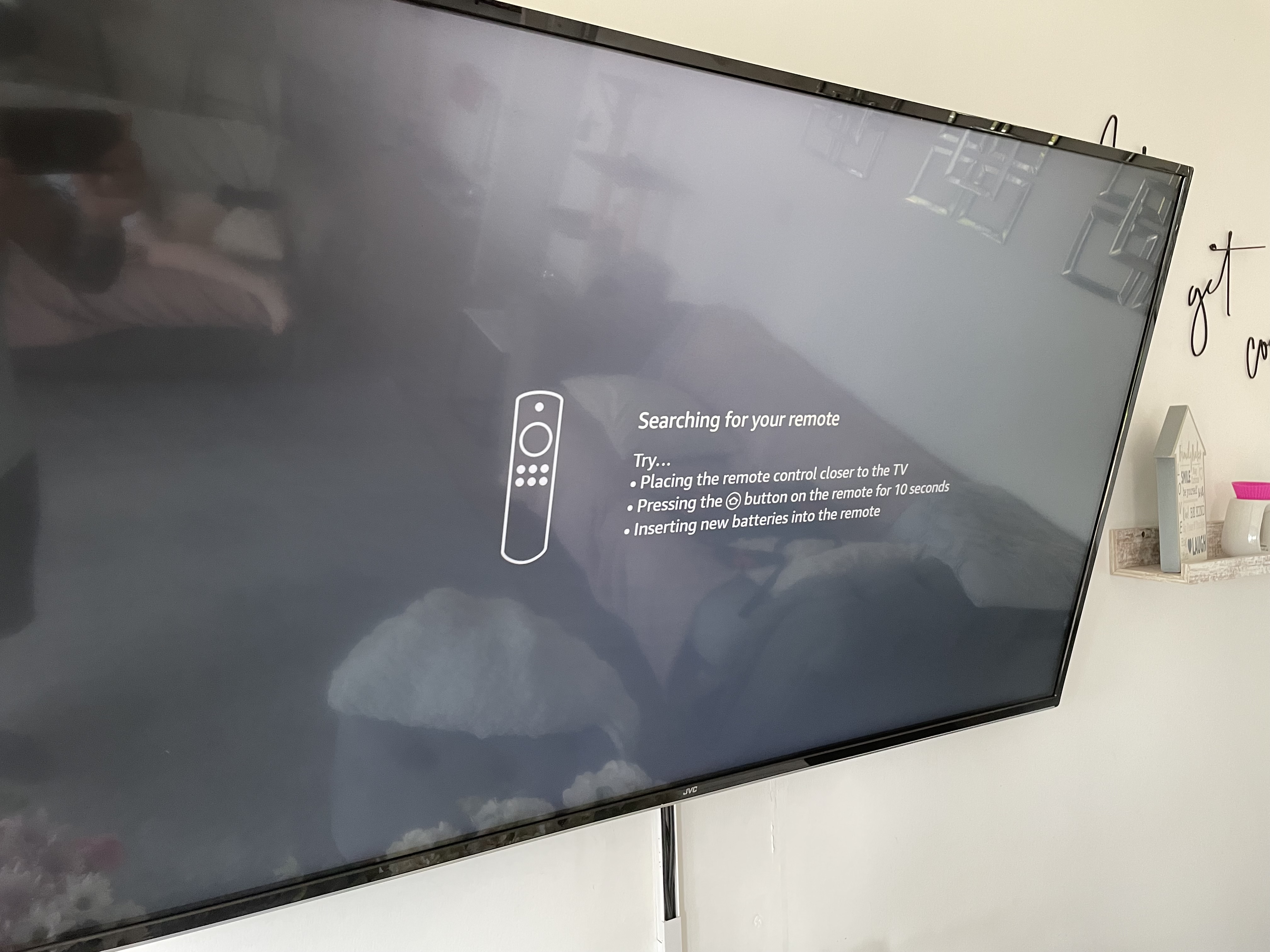
- Follow On-Screen Prompts: Your JVC TV should display a message indicating it’s searching for the remote or prompting you to confirm pairing. Follow any on-screen instructions.
- Confirmation: The TV will usually confirm when the pairing is successful.
- Test: Try using the remote’s functions.
Example: For some JVC smart TV models, pressing and holding the “Home” button and the “Back” button for 5-10 seconds while the TV is on will initiate the pairing process.
Updating Tv Software/firmware
Outdated software on your JVC TV can sometimes cause compatibility issues with accessories like remotes.
- Check for Updates: Navigate to your TV’s Settings menu. Look for options like System, Support, About, or Software Update.
- Scan for Updates: Select the option to check for available updates.
- Install Updates: If an update is found, follow the on-screen prompts to download and install it. This process requires a stable internet connection and may take some time. The TV will likely restart multiple times.
- Test Remote: After the update is complete and the TV has rebooted, test your remote.
Factory Resetting The Tv (last Resort)
If other software-related troubleshooting fails, a factory reset of your JVC TV can resolve persistent issues. Warning: This will erase all your personalized settings, downloaded apps, and logged-in accounts, returning the TV to its out-of-the-box state.
- Access Settings: Go to your TV’s Settings menu.
- Find Reset Option: Look for options like System, Support, Reset, or Factory Reset.
- Confirm Reset: You will likely need to enter a PIN (often 0000 or 1234 if you haven’t set one) and confirm that you want to proceed.
- Re-setup TV: After the reset, your TV will restart, and you’ll need to go through the initial setup process again, including connecting to Wi-Fi and signing into your accounts.
- Re-pair Remote: You will almost certainly need to re-pair your smart remote after a factory reset.
- Test Remote: Once the TV is set up, test the remote.
Step 5: Potential Hardware Issues And Troubleshooting
If the simpler solutions haven’t worked, it’s possible there’s a hardware problem with either the remote or the TV.
Testing The Remote On Another Device (if Applicable)
If you have another JVC TV or a compatible device that uses a similar remote system, you could try testing your remote on that device. This helps isolate whether the problem is with the remote itself or your specific TV.
However, this is often impractical due to model variations.
Checking The Tv’s Ir Receiver Port
While less common, the IR receiver port on the TV itself could be damaged or have a loose connection internally.
- Visual Inspection: Carefully inspect the area around the IR receiver on the TV. Look for any visible cracks, damage, or signs of impact.
- Internal Connection (Advanced): For users comfortable with electronics, opening the TV casing (while unplugged and discharged) to check for loose wires connected to the IR receiver board might be an option. This is not recommended for the average user and can void your warranty. If you suspect this, it’s best to contact a professional technician.
Jvc Remote Control Lifespan And Wear
Like any electronic device, remote controls have a finite lifespan. Buttons can become worn out, internal circuitry can fail, or components can degrade over time.
- Button Malfunction: If only specific buttons on your remote aren’t working, it might indicate wear or debris under those particular buttons.
- Physical Damage: Dropping the remote, exposure to liquids, or significant impact can cause internal damage that isn’t always visible.
Step 6: When To Consider Replacement Or Alternatives
If you’ve exhausted all troubleshooting steps and your JVC TV remote still isn’t working, it’s likely time to consider replacing it or opting for an alternative control method.
Ordering A Replacement Jvc Remote
- Original Equipment Manufacturer (OEM): The most straightforward option is to purchase an official JVC replacement remote. You can usually find these through:
- The JVC official website.
- Authorized JVC parts distributors.
- Major online retailers (Amazon, eBay, etc. ).
- Crucially, you will need your JVC TV’s model number (usually found on a sticker on the back of the TV) to ensure you order the correct, compatible remote.
- Aftermarket Remotes: Various companies produce aftermarket remotes designed to work with JVC TVs. These can sometimes be cheaper but may lack some of the specific functions of the original remote. Ensure the product description explicitly states compatibility with your TV model.
Data Point: The cost of an OEM JVC replacement remote can range from $20 to $60, depending on the model and features. Aftermarket options might be available for $10-$30.
Using A Universal Remote Control
A universal remote is programmed to control multiple devices from different brands, including your JVC TV.
- Setup: Most universal remotes require a setup process where you enter specific codes for your TV brand or use an auto-scan feature.
- Compatibility: Ensure the universal remote explicitly lists compatibility with JVC televisions. Popular brands include Logitech Harmony (though discontinued, still widely used and supported), GE, RCA, and One For All.
- Features: While universal remotes can be highly functional, they might not replicate every single button or smart feature of the original JVC remote (e.g., voice control, specific app buttons).
- Advantages: A significant advantage is consolidating multiple remotes into one. They can also be a cost-effective solution if your original remote is expensive or hard to find.
Comparison Table: Original JVC Remote vs. Universal Remote
| Feature | Original JVC Remote | Universal Remote |
|---|---|---|
| **Compatibility** | Guaranteed for your specific JVC TV model | Requires programming/code entry; check compatibility |
| **Functionality** | All original functions, including smart features | May not replicate all specific functions/buttons |
| **Setup** | Usually plug-and-play (or simple pairing for smart) | Requires setup (code entry, auto-scan) |
| **Cost** | Varies ($20-$60+) | Varies ($10-$100+), can be cheaper for basic models |
| **Consolidation** | Controls only the JVC TV | Can control multiple devices (TV, Blu-ray, soundbar) |
| **Availability** | Can sometimes be difficult to find for older models | Widely available |
Utilizing Smartphone Apps As Remotes
Many modern JVC smart TVs offer companion apps that can turn your smartphone or tablet into a fully functional remote control.
- App Requirements: These apps typically require your TV and smartphone to be connected to the same Wi-Fi network.
- Features: Smartphone remote apps often provide features beyond a standard remote, including:
- Full navigation (directional pad, OK button)
- Keyboard input for searching and entering text
- Voice control (if supported by the app and TV)
- Quick access to apps and settings
- Finding the App: Search your smartphone’s app store (Google Play Store for Android, Apple App Store for iOS) for “JVC TV Remote” or check the JVC support website for recommendations specific to your TV model. For example, the official “JVC Remote Control” app or similar third-party apps are often available.
- Example: A user with a JVC LT-50CF890 might download the official JVC app, connect it to the same Wi-Fi as their TV, and then use their phone to navigate menus, launch Netflix, and control playback.
In my experience, these smartphone apps are incredibly useful, especially when the physical remote is missing or malfunctioning, offering a robust and often superior control interface for smart TV functions.
Frequently Asked Questions
Why Did My Jvc Tv Remote Suddenly Stop Working?
Sudden failures are most commonly caused by dead batteries, followed by obstructions blocking the infrared signal (for IR remotes), or a lost Bluetooth/RF pairing (for smart remotes). Less common causes include a dirty or malfunctioning IR sensor on the TV, or a temporary software glitch in the TV or remote.
How Do I Know If My Jvc Tv Remote Is Sending A Signal?
You can test this using your smartphone’s camera. Open the camera app, point the front of the remote (where the emitter is) at the lens, and press a button. If the remote is working, you should see a faint purplish light flashing on your phone screen. If you don’t see a light, the remote is likely not transmitting, and the issue is probably with the batteries or the remote itself.
My Jvc Smart Remote Won’t Pair. What Should I Do?
Ensure the remote is close to the TV, that the TV is powered on, and that you are using the correct button combination to enter pairing mode (refer to your TV manual). Try power cycling both the remote (remove batteries for a minute) and the TV (unplug it for a minute).
If it still fails, the remote itself might be faulty, or there could be an issue with the TV’s Bluetooth receiver.
Can I Use A Universal Remote If My Jvc Remote Is Broken?
Yes, a universal remote is an excellent alternative. You’ll need to ensure the universal remote is compatible with JVC TVs and program it using the provided codes or auto-scan feature. While it may not have every single button of the original remote, it should cover all essential functions like power, volume, channels, and menu navigation.
Is It Worth Repairing A Broken Jvc Tv Remote?
For most standard JVC remotes, repair is often not cost-effective. The cost of replacement parts and labor can easily exceed the price of a new original or universal remote. Simple fixes like battery replacement are always worth trying. However, if the remote suffered significant physical damage (like a drop or liquid spill), replacement is usually the most practical solution.
A non-working JVC TV remote can be a significant annoyance, but as this guide has shown, most issues are resolvable with systematic troubleshooting. Starting with the simplest explanations, batteries and obstructions, and progressing through power cycles, sensor checks, and pairing procedures often restores functionality.
Remember to consult your specific JVC TV model’s user manual for detailed instructions, especially regarding pairing smart remotes or accessing system settings. If all else fails