
The Adobe PDF printer not working is a frustrating issue that can disrupt workflows for individuals and businesses alike. Whether you’re trying to save a document as a PDF, print a web page, or create a digital copy of a physical file, encountering errors with the Adobe PDF printer can halt productivity. This common problem can stem from a variety of sources, ranging from simple software glitches to more complex system conflicts. Understanding the potential causes and systematically troubleshooting them is key to getting your PDF creation capabilities back online.
This comprehensive guide will walk you through the most effective solutions for when your Adobe PDF printer is not functioning as expected. We will explore common error messages, delve into the underlying reasons for these failures, and provide step-by-step instructions to resolve them.
From checking printer statuses and updating drivers to repairing Adobe Acrobat installations and addressing Windows conflicts, you’ll find a wealth of actionable advice to get your Adobe PDF printer working again.
Key Takeaways
- Restart and Update: Often, a simple restart of your computer and ensuring Adobe Acrobat/Reader and your operating system are up-to-date can resolve the issue.
- Check Printer Status: Verify that “Adobe PDF” is listed as a valid printer and is not offline or set as the default if you’re experiencing conversion issues.
- Repair Installation: Corrupted Adobe installation files are a frequent culprit; use the built-in repair function in Acrobat or Reader.
- Driver Issues: Outdated or corrupted Adobe PDF printer drivers can cause failures. Reinstalling them is a common fix.
- Windows Conflicts: Conflicts with other software, particularly antivirus programs or other PDF printers, can interfere with Adobe’s functionality.
- System File Corruption: Underlying Windows system file issues can impact the PDF printer’s performance. Running SFC and DISM scans can help.
- Permissions: Ensure that Adobe applications have the necessary permissions to create and save files.
Common Scenarios And Error Messages
When the Adobe PDF printer stops working, users often encounter specific error messages or observe consistent behaviors that indicate a problem. Recognizing these patterns can help in diagnosing the root cause more efficiently. Some of the most frequently reported issues include:
- “Acrobat is not activated” or “Activation Error”: This usually indicates a licensing or installation problem with Adobe Acrobat. While not directly a printer issue, it can prevent the PDF printer from functioning if the core application is not properly licensed or activated.
- “Adobe PDF printer is offline”: This message suggests that Windows perceives the Adobe PDF printer as unavailable. This can happen due to a service not running, a driver issue, or a conflict.
- “The document could not be printed. Adobe PDF is not available. Either the printer was not installed correctly, or it is no longer on your computer”: This is a definitive error indicating that Windows cannot find or communicate with the Adobe PDF printer driver.
- “Error 1001” or “Error 0”: These generic error codes can appear during the PDF creation process and often point to a corrupted installation, insufficient permissions, or a conflict with another application.
- The “Save as PDF” or “Print to PDF” option is missing: In some cases, the Adobe PDF printer might disappear entirely from the list of available printers in application print dialogs.
- Print jobs get stuck in the queue: Documents sent to the Adobe PDF printer may remain in the print queue indefinitely without being processed.
Understanding these common symptoms is the first step toward finding a solution. The following sections will break down the troubleshooting process into manageable steps.

Credit: helpx.adobe.com
Troubleshooting Steps For Adobe Pdf Printer Issues
Resolving issues with the Adobe PDF printer not working requires a systematic approach. We’ll start with the simplest solutions and progress to more complex ones.
Basic Checks And Quick Fixes
Before diving into deeper technical solutions, it’s crucial to perform a few fundamental checks. These often resolve the issue without requiring extensive troubleshooting.
Restarting Essential Components
- Restart Your Computer: This is the most basic yet often effective solution. A simple reboot can clear temporary glitches in Windows, Adobe applications, and their associated services.
- Restart Adobe Acrobat/Reader: Close the Adobe application completely (ensure it’s not running in the background via Task Manager) and then reopen it.
- Restart the Print Spooler Service: The Windows Print Spooler is responsible for managing print jobs.
- Press `Windows Key + R`, type `services.msc`, and press Enter.
- Scroll down to “Print Spooler”.
- Right-click on “Print Spooler” and select “Restart”. If “Restart” is greyed out, select “Start”.
- If it was already running, try “Stop” and then “Start” again.
Verifying Printer Status In Windows
Ensure the Adobe PDF printer is recognized and configured correctly within your operating system.
- Open the Control Panel and navigate to Devices and Printers (or Printers & Scanners in Windows 10/11).
- Look for “Adobe PDF” in the list of installed printers.
- Check if it’s offline: If you see a down arrow icon or status indicating “Offline”, right-click on the “Adobe PDF” printer and select “Use Printer Online”.
- Set as Default (Optional but Recommended for Testing): While not always necessary, sometimes setting it as the default printer can help troubleshoot. Right-click “Adobe PDF” and select “Set as default printer”. Remember to change it back if this doesn’t solve the issue and you prefer another printer as default.
- Check Printer Properties: Right-click “Adobe PDF”, select “Printer properties”. Ensure the correct port is selected (usually “Port: Adobe PDF Port:”) and that no unusual settings are configured.
Updating Software And Drivers
Outdated software is a leading cause of compatibility issues.
- Update Adobe Acrobat/Reader:
- Open your Adobe application.
- Go to `Help > Check for Updates`.
- Install any available updates and restart your computer.
- Update Windows:
- Go to Settings > Update & Security > Windows Update.
- Click “Check for updates” and install all recommended and optional updates. Restart your computer afterward.
Repairing Adobe Acrobat/reader Installation
A corrupted installation of Adobe Acrobat or Reader is a very common reason for the PDF printer to fail. Fortunately, Adobe provides a built-in repair tool.
- Open Control Panel and go to “Programs and Features” (or “Apps & features” in Windows 10/11).
- Find “Adobe Acrobat [Version Number]” or “Adobe Reader [Version Number]” in the list.
- Select the application and click “Change” or “Modify” at the top.
- In the installation wizard that appears, choose the “Repair” option.
- Follow the on-screen prompts to complete the repair process.
- Restart your computer after the repair is finished.
In my experience, this repair function fixes a significant percentage of issues related to the Adobe PDF printer’s functionality, especially those manifesting as errors during the printing process or a missing printer.
Reinstalling The Adobe Pdf Printer Driver
If repairing the installation doesn’t work, the Adobe PDF printer driver itself might be corrupted or improperly registered. Reinstalling this specific driver can resolve the problem.
Uninstalling The Adobe Pdf Printer
- Open Control Panel > Devices and Printers.
- Right-click on “Adobe PDF”.
- Select “Remove device”. Confirm the removal if prompted.
- If prompted to “Print a test page” during removal, do so as it can help clear residual driver files.
Reinstalling The Adobe Pdf Printer Driver
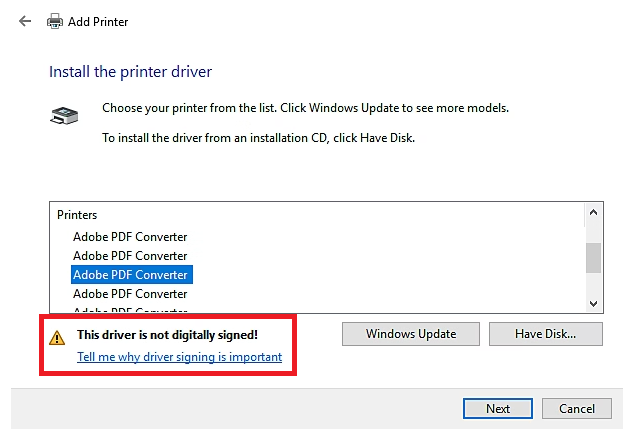
The Adobe PDF printer driver is typically installed as part of Adobe Acrobat or Reader. The repair process often reinstalls it. However, if the driver is still missing or problematic after a repair, you might need to use Adobe’s specific tools or a manual process.
A common method involves using the “Acrobat Distiller” component, which is integral to the PDF printer.
- Open Control Panel > Devices and Printers.
- Click “Add a printer” at the top.
- Select “The printer that I want isn’t listed”.
- Choose “Add a local printer or network printer with manual settings” and click “Next”.
- Select “Create a new port”. For the “Type of port”, choose “Local Port” and click “New Port”.
- In the “Port Name” field, type `AdobePDF` and click “OK”.
- Click “Next”.
- In the “Manufacturer” list, select “Adobe Systems, Incorporated”.
- In the “Printers” list, select “Adobe PDF”. If it’s not listed, you might need to click “Have Disk…” and browse to the Adobe installation directory to find the driver files (this is more advanced and may require locating specific `.inf` files).
- Click “Next”.
- Follow the remaining prompts to complete the installation. You may be asked to print a test page.
After reinstalling, restart your computer and test the Adobe PDF printer.
Addressing Conflicts With Other Software
Sometimes, other applications on your system can interfere with the Adobe PDF printer’s operation.
Antivirus And Security Software
Overly aggressive antivirus or security suites can sometimes mistakenly flag Adobe’s processes as malicious, blocking them from functioning correctly.
- Temporarily Disable Antivirus: Try temporarily disabling your antivirus software and then attempt to print to the Adobe PDF printer. Important: Remember to re-enable your antivirus immediately after testing, whether it resolves the issue or not.
- Add Exceptions: If disabling the antivirus helps, you may need to add Adobe Acrobat/Reader and the Adobe PDF printer process (`Acrobat.exe`, `AcroRd32.exe`, `Distiller.exe`) to your antivirus’s exclusion or whitelist list. Consult your antivirus software’s documentation for instructions.
Other Pdf Printers Or Virtual Printers
Having multiple virtual printers installed, especially other PDF creation tools, can sometimes lead to conflicts.
- Remove Redundant Printers: If you have other PDF printers installed (e.g., “Microsoft Print to PDF”, “WPS Office PDF”, or other third-party PDF printers), try temporarily uninstalling them one by one to see if the conflict is resolved.
- Check Default Printer Settings: Ensure that the “Adobe PDF” printer is correctly selected when you intend to use it, and that it’s not being overridden by another default printer.
Application-specific Issues
Occasionally, the problem might be specific to the application you are trying to print from.
- Test with Different Applications: Try printing to the Adobe PDF printer from different programs (e.g., Notepad, Microsoft Word, a web browser). If it works in some applications but not others, the issue likely lies within the problematic application’s settings or its integration with the PDF printer.
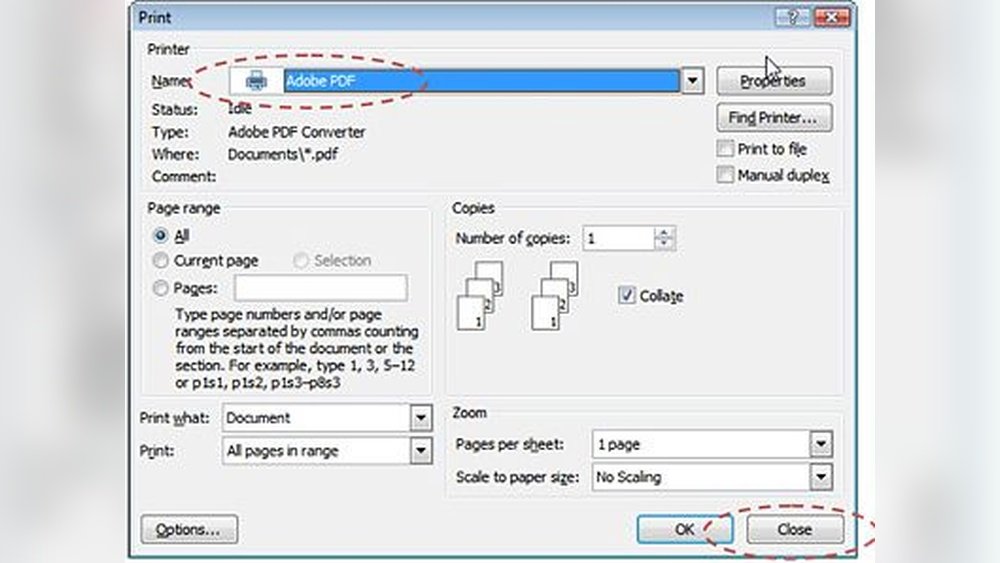
- Check Application Settings: Within the application you’re using, review its print settings. Ensure that “Adobe PDF” is selected as the printer and that no specific print settings within that application are causing the failure. For example, in Microsoft Word, go to `File > Print`, select “Adobe PDF” from the printer list, and check the “Printer Properties” or “Page Setup” for any unusual configurations.
Advanced Troubleshooting: System Files And Permissions
If the basic and intermediate steps haven’t resolved the issue, you might be dealing with deeper system-level problems.
Running System File Checker (sfc) And Dism
Corrupted Windows system files can impact the functionality of various applications, including the Adobe PDF printer.
- System File Checker (SFC):
- Open Command Prompt as Administrator. Search for `cmd` in the Start menu, right-click “Command Prompt”, and select “Run as administrator”.
- Type `sfc /scannow` and press Enter.
- This command will scan for and attempt to repair corrupted Windows system files. It may take some time to complete.
- Restart your computer after the scan finishes.
- Deployment Image Servicing and Management (DISM): If SFC doesn’t fix the problem, DISM can perform a more thorough check and repair of the Windows image.
- Open Command Prompt as Administrator.
- Type `DISM /Online /Cleanup-Image /RestoreHealth` and press Enter.
- This process can also take a significant amount of time.
- After DISM completes, run `sfc /scannow` again.
- Restart your computer.
Checking Folder Permissions
The Adobe PDF printer needs specific permissions to create and save PDF files in certain locations. Issues with permissions, especially if you’ve recently changed user account settings or security policies, can cause printing failures.
- Navigate to the default save location for Adobe PDF documents (often `Documents\Adobe PDF`). If this folder doesn’t exist, try creating it.
- Right-click on the folder, select “Properties”, then go to the “Security” tab.
- Ensure your user account has “Full control” or at least “Write” permissions. If not, click “Edit”, select your user account, check the “Allow” box for “Full control”, and click “Apply” and “OK”.
- Also, check permissions for the Adobe installation directory (e.g., `C: \Program Files\Adobe`).
Verifying Adobe Acrobat Distiller Settings
Adobe Acrobat Distiller is a crucial component that converts PostScript files into PDFs. If Distiller is not configured correctly or encounters issues, the PDF printer will fail.
- Open Adobe Acrobat Distiller (search for it in the Start menu).
- Go to Settings > Edit Adobe PDF Settings….
- Ensure that the “Default Settings” are selected or that any custom settings are valid. If you suspect custom settings are the issue, try resetting them to default.
- Check the “Watched Folders” settings. If folders are set up here, ensure they exist and that Adobe has permission to write to them. Sometimes, issues with watched folders can cause Distiller to hang. Try disabling watched folders temporarily.
Reinstalling Adobe Acrobat Or Reader Completely
If none of the above steps work, a complete uninstallation and fresh installation of Adobe Acrobat or Reader might be necessary. This ensures that all program files, registry entries, and associated components are removed and then reinstalled cleanly.
- Uninstall Adobe Acrobat/Reader:
- Go to Control Panel > Programs and Features.
- Select your Adobe product and click “Uninstall”.
- Follow the prompts.
- Clean Up Remaining Files: After uninstalling, manually check and delete any remaining Adobe folders in `Program Files` and `ProgramData` (you may need to show hidden files). Also, use a registry cleaner tool (with caution and a backup) or manually search for and delete Adobe-related registry keys.
- Download the Latest Version: Download the latest installer for Adobe Acrobat Reader DC (free) or Adobe Acrobat (paid) directly from the official Adobe website.
- Install: Run the downloaded installer and follow the on-screen instructions.
- Restart and Test: Restart your computer and check if the Adobe PDF printer is now working.
Credit: www.autodesk.com
Specific Scenarios And Solutions
Beyond general troubleshooting, certain specific situations might require tailored approaches.
Printing From Web Browsers
Many users try to print web pages to PDF. If this fails specifically in browsers like Chrome, Firefox, or Edge:
- Browser Cache and Extensions: Clear your browser’s cache and cookies. Temporarily disable browser extensions, especially those that interact with printing or PDF handling, as they can sometimes conflict.
- Browser Settings: Ensure that “Save as PDF” or “Adobe PDF” is selected as the printer in the browser’s print dialog. Some browsers have their own built-in “Print to PDF” function that might be overriding the system’s Adobe PDF printer. Check your browser’s print settings for options like “System Dialog” vs. “Save to PDF”.
Printing From Microsoft Office Applications
When printing Word documents, Excel spreadsheets, or PowerPoint presentations to PDF fails:
- “Save As Adobe PDF” Add-in: Ensure the “Save As Adobe PDF” add-in is enabled in Microsoft Office applications.
- Word/Excel/PowerPoint: Go to `File > Options > Add-ins`. In the “Manage” dropdown at the bottom, select “COM Add-ins” and click “Go”. Ensure “Adobe PDF” is checked. If it’s not listed, you may need to repair the Office installation or reinstall Adobe Acrobat.
- Print to PDF Feature: Microsoft Office applications also have a built-in “Save as PDF” or “Export to PDF” feature. Try using this instead of the “Print” dialog to see if it works. This bypasses the Adobe PDF printer driver and uses Microsoft’s own PDF conversion engine.
Printing Large Or Complex Documents
For very large documents, complex graphics, or documents with many layers, printing to PDF can sometimes fail due to resource limitations or timeouts.
- Print in Sections: If possible, try printing the document in smaller sections or batches.
- Simplify Document: Before printing, try simplifying the document by flattening layers, reducing image resolution where appropriate, or removing unnecessary elements.
- Increase System Resources: Close other resource-intensive applications running in the background to free up RAM and CPU power.
Issues After Windows Updates
Sometimes, a Windows update can introduce incompatibilities that affect the Adobe PDF printer.
- Check for Adobe Updates: After a major Windows update, immediately check for and install any available updates for Adobe Acrobat/Reader. Adobe often releases patches to ensure compatibility.
- Roll Back Update (Temporary): If the problem started immediately after a specific Windows update, you might consider temporarily rolling back that update via Settings > Update & Security > Windows Update > View update history > Uninstall updates. This should be a last resort and only done if you can pinpoint the update as the cause.

Credit: helpx.adobe.com
Comparison Of Pdf Creation Methods
When the Adobe PDF printer isn’t working, users often look for alternatives. Understanding these options can help maintain productivity.
| Method | Pros | Cons | Best Use Case |
|---|---|---|---|
| **Adobe PDF Printer** | High fidelity, integrates with Adobe suite, advanced options. | Can be resource-intensive, prone to installation/driver issues. | Creating professional PDFs from any application, complex documents. |
| **Microsoft Print to PDF** | Built-in to Windows, simple to use, no extra installation needed. | Limited customization, may not preserve complex formatting as well as Adobe. | Quick conversion of documents, web pages, or basic files. |
| **Browser’s Save as PDF** | Convenient for web pages, no extra software required. | Primarily for web content, limited control over PDF settings. | Saving web pages for later viewing or sharing. |
| **Application’s Export** | Often high quality, integrated within the software (e.g., Office). | Specific to the application, may not be available in all programs. | Creating PDFs directly from Word, Excel, Photoshop, etc. |
Frequently Asked Questions
Why Does My Adobe Pdf Printer Keep Going Offline?
The “offline” status typically means Windows cannot communicate with the printer service. This can be due to the Print Spooler service stopping, a corrupted driver, a conflict with other software (especially antivirus), or incorrect printer port settings. Restarting the Print Spooler service, ensuring the printer is set to “online” in devices, and checking for driver updates or reinstalling the driver are common solutions.
Can I Use The Adobe Pdf Printer On Macos?
Yes, Adobe Acrobat provides a PDF printer function on macOS as well, typically integrated through its print dialog. If you encounter issues, ensure Adobe Acrobat is up-to-date, check for macOS compatibility updates from Adobe, and verify that the “Save as PDF” option within the macOS print dialog is functioning correctly.
The troubleshooting steps might differ slightly, focusing more on application permissions and macOS system updates.
How Do I Fix “adobe Pdf Printer Is Not Installed”?
This error means Windows cannot find the necessary driver files. The solution usually involves reinstalling the Adobe PDF printer. This can often be achieved by repairing the Adobe Acrobat/Reader installation. If that fails, you may need to manually add the printer via Control Panel > Devices and Printers > Add a printer, selecting a local port named `AdobePDF`, and then choosing the “Adobe PDF” driver from the manufacturer list. A complete uninstallation and reinstallation of Adobe Acrobat/Reader is also a strong possibility.
What Is The Difference Between Adobe Pdf Printer And Microsoft Print To Pdf?
The Adobe PDF Printer is part of Adobe Acrobat or Reader, offering advanced features for creating high-fidelity PDFs with extensive control over compression, security, and metadata. It