
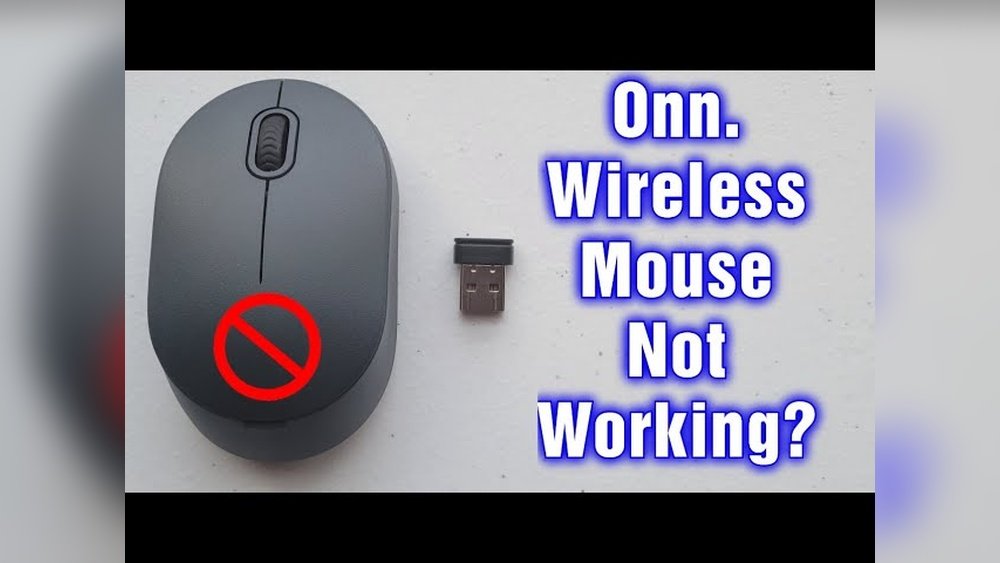
The frustration of a wireless mouse suddenly ceasing to function can bring productivity to a grinding halt. Whether you’re deep into a critical project, enjoying a gaming session, or simply browsing the web, an unresponsive mouse is a significant roadblock. The Onn wireless mouse, a popular choice for its affordability and accessibility, is no exception to occasional technical hiccups. While generally reliable, users sometimes encounter the dreaded scenario where their Onn wireless mouse is not working.
This guide aims to be your comprehensive troubleshooting manual. We’ll meticulously explore the common reasons why your Onn wireless mouse might be failing to respond and provide step-by-step solutions to get you back up and running swiftly. From simple fixes like checking batteries to more involved software adjustments, we’ll cover every potential culprit.
Our goal is to empower you with the knowledge to diagnose and resolve most issues independently, saving you time and the potential cost of a replacement.
Key Takeaways
- Battery Power is Paramount: Always start by checking and replacing the batteries in your Onn wireless mouse, as low or dead batteries are the most frequent cause of malfunction.
- Connection Issues are Common: Ensure the USB receiver is securely plugged in and try a different USB port. For Bluetooth models, re-pairing the mouse is often necessary.
- Software Glitches Can Occur: Restarting your computer and checking for driver updates can resolve many software-related problems.
- Interference Can Disrupt Signals: Keep the mouse and receiver away from other wireless devices that might cause interference.
- Physical Obstructions Matter: Ensure a clear line of sight between the mouse and its receiver, and clean the optical sensor for optimal performance.
- Hardware Malfunction is Possible: If all troubleshooting steps fail, the mouse itself might be defective.

Credit: www.youtube.com
Common Causes For An Onn Wireless Mouse Not Working
When your Onn wireless mouse suddenly stops responding, it can be a perplexing issue. Several factors, ranging from simple power problems to more complex software conflicts, can contribute to this malfunction. Understanding these common causes is the first step toward effective troubleshooting.
Insufficient Or Dead Batteries
This is, by far, the most common reason for any wireless mouse, including Onn models, to stop working. Wireless mice rely entirely on battery power to transmit signals to the computer.
- Low Battery Indicator: Some Onn wireless mice may have a small LED light that indicates battery status. If this light is dim, flashing, or off when it’s usually on, it’s a strong sign the batteries are low.
- Gradual Performance Degradation: Before completely failing, a mouse with low batteries might exhibit erratic behavior, such as jerky cursor movement or delayed clicks.
- Sudden Cessation: Often, the mouse will simply stop responding without any prior warning once the batteries are completely depleted.
It’s crucial to use high-quality alkaline batteries for optimal performance and longevity. Cheap or old batteries may not provide sufficient power, leading to premature failure.
Loose Or Faulty Usb Receiver Connection
For non-Bluetooth Onn wireless mice, a small USB receiver (dongle) is responsible for communicating with your computer. A poor connection or a damaged receiver can prevent the mouse from working.
- Unseated Dongle: The USB receiver might have been accidentally dislodged from its port, especially if the computer has been moved or bumped.
- Damaged USB Port: The USB port on your computer could be faulty, preventing any device from connecting properly.
- Receiver Damage: The USB receiver itself might be physically damaged, bent pins, or internal issues could render it inoperable.
Interference From Other Wireless Devices
Wireless technology relies on radio frequencies to operate. When multiple devices use similar frequencies, interference can occur, disrupting the signal between your Onn mouse and its receiver.
- Common Sources of Interference:
- Other wireless mice or keyboards
- Wireless speakers
- Wi-Fi routers and modems
- Microwave ovens
- Cordless phones
- Bluetooth devices
The closer these interfering devices are to your mouse and its receiver, the higher the likelihood of signal disruption.
Software Or Driver Issues
While less common for basic plug-and-play devices like many Onn wireless mice, software glitches or outdated drivers can sometimes cause connectivity problems.
- Driver Conflicts: Occasionally, a newly installed program or a Windows update might conflict with the mouse’s existing drivers.
- Corrupted Drivers: Drivers can become corrupted over time, leading to erratic behavior or complete failure.
- Operating System Glitches: A temporary glitch within the operating system itself can sometimes prevent peripheral devices from being recognized.
Physical Obstructions Or Sensor Issues
The optical sensor on the underside of your mouse needs a clear view of the surface to track movement. Debris or damage to this sensor can cause it to malfunction.
- Dirty Sensor: Dust, hair, or other debris can accumulate on the optical sensor, blocking its view and preventing accurate tracking.
- Surface Issues: Highly reflective surfaces (like glass or polished metal) or uneven textures can sometimes confuse the optical sensor.
- Physical Damage: Dropping the mouse can damage the sensor or internal components, leading to a non-functional device.
Bluetooth Connectivity Problems (for Bluetooth Models)
If your Onn mouse uses Bluetooth instead of a USB receiver, the troubleshooting steps will differ slightly, focusing on the Bluetooth pairing process.
- Pairing Issues: The mouse may have lost its pairing with your computer.
- Bluetooth Adapter Issues: The computer’s Bluetooth adapter might be disabled, malfunctioning, or have outdated drivers.
- Interference: Similar to USB receivers, Bluetooth signals can also be subject to interference from other wireless devices.

Credit: www.youtube.com
Troubleshooting Steps: Getting Your Onn Wireless Mouse Working Again
When your Onn wireless mouse refuses to cooperate, a systematic approach to troubleshooting is the most effective way to identify and resolve the issue. Start with the simplest solutions and progress to more complex ones.
Step 1: Check And Replace Batteries
This is the golden rule of wireless peripheral troubleshooting. Always start here.
- Locate the Battery Compartment: Most Onn wireless mice have a small compartment on the underside, usually accessed by sliding a cover.
- Remove Old Batteries: Eject the existing batteries.
- Insert Fresh Batteries: Ensure you are using brand new, high-quality alkaline batteries of the correct type (usually AA or AAA). Pay close attention to the positive (+) and negative (-) terminal orientations as indicated inside the compartment.
- Replace the Cover: Securely close the battery compartment.
- Test the Mouse: See if the cursor moves or if the mouse responds to clicks.
Pro Tip: If your mouse has a power switch, ensure it’s in the “ON” position. Sometimes this switch can be accidentally toggled off.
Step 2: Verify Usb Receiver Connection (for Non-bluetooth Models)
A secure connection between the USB receiver and your computer is vital.
- Remove the Receiver: Gently pull the USB receiver out of its current port.
- Inspect the Port: Check the USB port for any visible debris or damage.
- Try a Different USB Port: Plug the receiver into a different USB port on your computer. Sometimes, a specific port can malfunction. Prioritize ports directly on the motherboard (usually the back of a desktop PC) over front-facing ports or USB hubs, as these often provide more stable power.
- Ensure a Secure Fit: Make sure the receiver is plugged in firmly and completely.
- Test the Mouse: Check if the mouse is now working.
If you are using a USB hub, try plugging the receiver directly into the computer to rule out the hub as the source of the problem.
Step 3: Re-establish Bluetooth Connection (for Bluetooth Models)
If your Onn mouse uses Bluetooth, the pairing process needs to be correct.
- Turn Off Mouse Bluetooth: If your mouse has a Bluetooth switch, turn it off.
- Remove Mouse from Computer’s Bluetooth Devices:
- Windows: Go to Settings > Bluetooth & devices > Devices. Find your Onn mouse in the list, click the three dots (or the device name), and select “Remove device.”
- MacOS: Go to System Settings (or System Preferences) > Bluetooth. Find your Onn mouse, hover over it, and click the ‘x’ or “Forget Device.”
- Turn On Mouse Bluetooth: Turn the mouse’s Bluetooth switch back on and put it into pairing mode (refer to your mouse’s manual for specific instructions, often involves holding down a button).
- Scan for Devices on Computer:
- Windows: Go to Settings > Bluetooth & devices > Add device > Bluetooth. Wait for your mouse to appear and select it to pair.
- MacOS: Ensure Bluetooth is on. Your mouse should appear in the list of nearby devices. Click “Connect” next to it.
- Test the Mouse: Verify if the connection is successful and the mouse is responsive.
Step 4: Minimize Wireless Interference
Interference can significantly degrade or block the signal from your mouse.
- Physical Proximity: Move your Onn wireless mouse and its USB receiver away from other wireless devices, especially Wi-Fi routers, cordless phones, and other peripherals operating on similar frequencies.
- Line of Sight: Ensure there is a clear, unobstructed path between the mouse and its USB receiver. Thick objects, metal surfaces, and even your own body can sometimes block the signal.
- Reduce Device Count: Temporarily turn off or disconnect other unnecessary wireless devices to see if the mouse starts working. If it does, you’ve identified an interfering device.
- USB 3.0 Interference: In some cases, USB 3.0 ports and devices can emit radio frequency interference that affects 2.4 GHz wireless devices. Try plugging the receiver into a USB 2.0 port if available.
Step 5: Clean The Optical Sensor
A dirty or obstructed sensor is a common culprit for tracking issues.
- Turn Off the Mouse: Ensure the mouse is powered off or remove the batteries.
- Locate the Sensor: Find the small optical lens on the underside of the mouse.
- Use Compressed Air: Hold a can of compressed air upright and use short bursts to blow away any dust or debris from the sensor area.
- Use a Cotton Swab: If compressed air isn’t sufficient, lightly dampen a cotton swab with isopropyl alcohol (rubbing alcohol) and gently clean the sensor lens. Ensure it dries completely before powering the mouse back on. Never use water or harsh chemicals.
- Check the Surface: Ensure the surface you are using the mouse on is clean and not overly reflective or transparent. A mousepad is often the best solution.
Step 6: Restart Your Computer
A simple reboot can resolve temporary software glitches that might be preventing the mouse from being recognized.
- Save Your Work: Ensure all your open documents and applications are saved.
- Restart: Go to the Start menu (Windows) or Apple menu (macOS) and select “Restart.”
- Test After Reboot: Once your computer has fully rebooted, check if the Onn wireless mouse is now working.
Step 7: Update Or Reinstall Mouse Drivers
While many Onn mice are plug-and-play, ensuring the correct drivers are installed can sometimes help.
- Check Device Manager (Windows):
- Right-click the Start button and select “Device Manager.”
- Expand the “Mice and other pointing devices” section.
- Look for your Onn wireless mouse. If it has a yellow exclamation mark next to it, there’s a driver issue.
- Right-click the mouse and select “Update driver.” Choose “Search automatically for drivers.”
- If that doesn’t work, right-click again, select “Uninstall device,” then restart your computer. Windows will attempt to reinstall the driver automatically upon reboot.
- Check Manufacturer’s Website: Although Onn products are often basic, sometimes a support section on the Walmart website (where Onn products are primarily sold) might offer basic driver downloads or troubleshooting guides. Search for your specific Onn mouse model.
Note: For most basic Onn wireless mice, Windows will use a generic HID (Human Interface Device) driver, which is usually built into the operating system. Advanced driver management is less common.
Step 8: Test The Mouse On Another Computer
To determine if the issue lies with the mouse itself or your computer, test it on a different system.
- Connect to Another PC/Mac: Take your Onn wireless mouse and its USB receiver (or ensure it’s paired if Bluetooth) to another computer.
- Install/Pair: Allow the second computer to detect and install drivers (if necessary) or pair the Bluetooth mouse.
- Test Functionality: See if the mouse works correctly on this alternative system.
- If it works: The problem is likely with your original computer’s software, drivers, USB ports, or operating system configuration.
- If it doesn’t work: The problem is very likely with the mouse itself (hardware failure).
Step 9: Check For Physical Damage
Inspect the mouse for any signs of physical damage that could be causing the malfunction.
- Cracks or Breaks: Look for any cracks in the casing, especially around the USB receiver port (if applicable) or the sensor area.
- Loose Parts: Gently shake the mouse to see if any internal components feel loose.
- Damaged Scroll Wheel or Buttons: Ensure the buttons and scroll wheel move freely and don’t feel jammed or broken.
If significant physical damage is apparent, especially after a drop, the mouse may be beyond repair.
Onn Wireless Mouse Models And Specific Issues
Onn offers a range of wireless mice, from simple, budget-friendly optical mice to more ergonomic designs and even Bluetooth-enabled options. While the general troubleshooting steps apply broadly, specific models might have nuances.
Basic Onn Optical Wireless Mouse (usb Receiver)
These are the most common type. They typically come with a small USB dongle.
- Key Component: USB Receiver (Dongle).
- Common Issues: Battery depletion, loose dongle connection, interference.
- Troubleshooting Focus: Ensure fresh batteries, try different USB ports for the dongle, move away from other wireless devices.
Onn Ergonomic Wireless Mouse
Designed for comfort, these often have a slightly different shape but function similarly to basic models, usually relying on a USB receiver.
- Key Component: USB Receiver (Dongle).
- Common Issues: Similar to basic models, but ensure the larger form factor isn’t causing accidental button presses or blocking the sensor inadvertently.
- Troubleshooting Focus: Battery checks, dongle connection, sensor cleanliness.
Onn Bluetooth Wireless Mouse
These mice connect directly to your computer’s built-in Bluetooth, eliminating the need for a USB receiver.
- Key Component: Bluetooth Module (in mouse and computer).
- Common Issues: Pairing failures, Bluetooth adapter disabled on the computer, interference with other Bluetooth devices.
- Troubleshooting Focus: Re-pairing the mouse, checking computer’s Bluetooth settings, ensuring Bluetooth drivers are up-to-date on the computer.
Example: A user reports their Onn Bluetooth mouse disconnects frequently. After confirming batteries are new, they check their computer’s Bluetooth settings and find the adapter was accidentally turned off. Re-enabling it and re-pairing the mouse resolves the intermittent connectivity.
Onn Wireless Vertical Mouse
These ergonomic mice promote a more natural handshake posture. They typically use a USB receiver.
- Key Component: USB Receiver (Dongle).
- Common Issues: Battery issues, dongle connection problems. The vertical design itself rarely causes functional issues unless there’s physical damage.
- Troubleshooting Focus: Battery replacement, ensuring the dongle is securely connected, testing on a different surface if tracking is poor.
Comparing Wireless Mouse Technologies
Understanding the underlying technology can help diagnose issues. Most Onn wireless mice use one of two primary connection methods:
| Feature | 2.4 GHz Wireless (USB Receiver) | Bluetooth Wireless |
|---|---|---|
| **Connection** | Dedicated USB receiver (dongle) | Built-in Bluetooth on computer |
| **Setup** | Plug-and-play; receiver plugs into USB port | Pairing required via computer’s Bluetooth settings |
| **Port Usage** | Requires one USB port | Does not require a USB port |
| **Interference** | Can be affected by other 2.4 GHz devices | Can be affected by other Bluetooth and 2.4 GHz devices |
| **Power Consumption** | Generally efficient, but varies by model | Can be very power-efficient, especially Bluetooth 5.0+ |
| **Latency** | Often lower latency, preferred for gaming | Latency can vary; generally good for productivity |
| **Device Pairing** | Receiver is pre-paired or requires simple sync | Requires manual pairing process via OS settings |
| **Typical Onn Use** | Basic optical mice, ergonomic mice | Some newer Onn models, often marketed for versatility |
Data Point: A study by TechInsights indicated that while both 2.4 GHz and Bluetooth offer convenience, Bluetooth 5.0 and later versions provide significant improvements in range, speed, and power efficiency compared to earlier iterations. This means newer Bluetooth Onn mice might offer a more robust connection if your computer also supports modern Bluetooth standards.

Credit: www.youtube.com
Advanced Troubleshooting And Potential Hardware Failure
If you’ve exhausted the basic and intermediate troubleshooting steps, it’s time to consider more complex issues or the possibility of a hardware defect.
Checking Mouse Polling Rate And Sensitivity Settings
While most Onn mice are plug-and-play and don’t offer extensive customization, some might have subtle settings accessible through generic Windows/macOS mouse settings.
- Windows: Go to Settings > Bluetooth & devices > Mouse. Here you can adjust pointer speed and check other basic settings. You can also access “Additional mouse options” which opens a classic Control Panel window with tabs for Pointer Options, Buttons, Wheel, etc. Ensure the “Pointer speed” isn’t set too low or high, and check that “Enhance pointer precision” is enabled or disabled based on your preference (sometimes toggling this can help).
- MacOS: Go to System Settings > Mouse. Adjust tracking speed and scrolling speed.
Note: Onn mice typically lack dedicated software for DPI (dots per inch) or polling rate adjustments, unlike premium gaming mice.
Conflict With Other Input Devices
Occasionally, having multiple pointing devices connected simultaneously can cause conflicts.
- Disconnect Other Devices: Temporarily disconnect any other mice, trackpads, drawing tablets, or game controllers.
- Test Onn Mouse: See if the Onn mouse works correctly with all other input devices disconnected.
- Reintroduce Gradually: If it works, reconnect your other devices one by one, testing the Onn mouse after each addition, to identify which device might be causing the conflict.
Checking System Power Management Settings (windows)
Windows has power-saving features that can sometimes disable USB devices to conserve energy.
- Open Device Manager: Right-click the Start button and select “Device Manager.”
- Locate USB Controllers: Expand the “Universal Serial Bus controllers” section.
- Check USB Root Hub Properties: Right-click on entries like “USB Root Hub (USB)” or similar. Select “Properties.”
- Power Management Tab: Go to the “Power Management” tab.
- Disable Power Saving: Uncheck the box that says “Allow the computer to turn off this device to save power.”
- Repeat: Repeat this process for all relevant USB Root Hub entries.
- Restart: Restart your computer and test the mouse.
Hardware Failure: When The Mouse Itself Is The Problem
If you’ve tried the mouse on another computer and it still doesn’t work, or if you notice physical damage, it’s highly probable that the mouse hardware has failed.
- Common Failure Points:
- Internal Switch Failure: The microswitches under the mouse buttons can wear out or fail.
- Optical Sensor Failure: The sensor itself can become damaged or stop functioning.
- Internal Circuitry Damage: A drop or impact can damage the internal circuit board.
- Battery Contact Corrosion: Old batteries can sometimes leak, corroding the contacts in the battery compartment, preventing power flow.
Example: A user’s Onn mouse suddenly stopped clicking. After trying new batteries and different USB ports, they noticed the left-click button felt mushy and unresponsive. Testing on another computer confirmed the issue. This points to a likely failure of the internal mouse switch.
Given the affordability of Onn wireless mice, repair is often not economically viable. If hardware failure is confirmed, the most practical solution is replacement.
Maintaining Your Onn Wireless Mouse For Longevity
Preventing issues is often easier than fixing them. Proper care and maintenance can extend the life of your Onn wireless mouse and ensure consistent performance.
Regular Cleaning
- Sensor: As detailed earlier, periodically clean the optical sensor with compressed air or a dry cotton swab.
- Exterior: Wipe down the mouse body with a slightly damp microfiber cloth to remove oils and dirt. Avoid harsh cleaning agents