
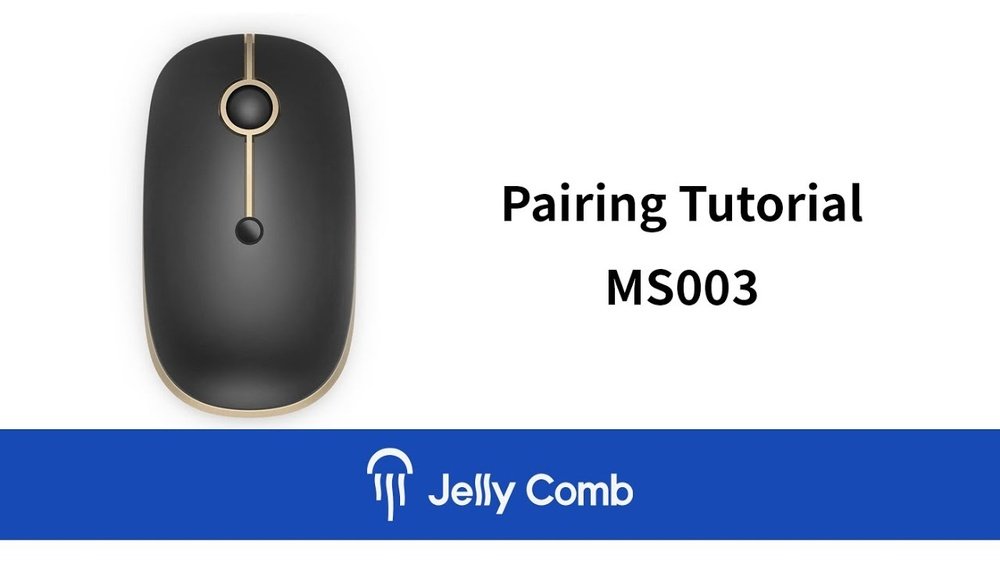
The Jelly Comb mouse not working is a frustrating issue that can bring your productivity to a standstill. Whether you’re in the middle of a crucial work project, enjoying a gaming session, or simply browsing the web, a malfunctioning mouse can derail your entire digital experience. Jelly Comb, known for its range of affordable and functional computer peripherals, offers various mouse models, from wireless optical mice to ergonomic designs. When one of these devices suddenly stops responding, it’s essential to have a systematic approach to troubleshooting. This guide will walk you through the most common reasons why your Jelly Comb mouse might not be working and provide step-by-step solutions to get it back up and running. We’ll cover everything from simple fixes like checking batteries and connections to more complex software-related issues and hardware diagnostics.
Understanding the potential causes behind a non-responsive mouse is the first step toward a swift resolution. Often, the problem is a minor oversight, but sometimes it can point to a deeper issue with your computer’s operating system, drivers, or even the mouse hardware itself.
By systematically eliminating possibilities, you can save time and avoid unnecessary stress. This comprehensive guide aims to equip you with the knowledge and actionable steps to diagnose and resolve most Jelly Comb mouse problems, ensuring you can return to your tasks with minimal interruption.
Key Takeaways
- Check Power & Connection: Ensure batteries are fresh and correctly inserted (wireless) or that the USB cable is securely plugged in (wired).
- Test on Another Device: A simple test on a different computer can quickly determine if the issue lies with the mouse or your primary PC.
- Inspect Sensor & Surface: Clean the optical sensor and try a different mousepad or surface to rule out tracking problems.
- Restart Your Computer: A basic reboot can resolve many temporary software glitches affecting peripheral recognition.
- Update/Reinstall Drivers: Outdated or corrupted drivers are a common culprit; re-installing or updating them can fix the problem.
- Check Device Manager: Verify that the mouse is recognized by Windows and look for any error indicators.
- Troubleshoot Wireless Interference: For wireless models, ensure there are no nearby devices causing signal disruption.
- Consider Hardware Failure: If all else fails, the mouse itself might be defective and require replacement.

Credit: www.ifixit.com
Troubleshooting A Jelly Comb Wireless Mouse
Wireless mice offer the freedom of a clutter-free desk, but they also introduce a few potential points of failure that wired mice don’t have. The most common issues with Jelly Comb wireless mice revolve around power, connectivity, and interference. Addressing these systematically is key to restoring functionality.
Power Issues: Batteries And Charging
The most frequent reason a wireless mouse stops working is a lack of power. This can be due to dead batteries or, in the case of rechargeable models, a depleted battery that needs charging.
- Check and Replace Batteries: For mice that use standard AA or AAA batteries, ensure they are inserted correctly with the positive and negative terminals aligned with the markings in the battery compartment. If the batteries are old, replace them with a fresh set. Even if you think the batteries are new, try a different set to rule out faulty batteries.
- Verify Battery Contacts: Sometimes, the metal contacts inside the battery compartment can become dirty or corroded, preventing a good connection. Gently clean these contacts with a pencil eraser or a cotton swab lightly dampened with isopropyl alcohol. Ensure they are completely dry before inserting new batteries.
- Rechargeable Models: If your Jelly Comb mouse has a built-in rechargeable battery, ensure it’s adequately charged. Connect the mouse to its charging cable and plug it into a powered USB port on your computer or a wall adapter. Allow sufficient time for charging, as indicated in the mouse’s manual. Some mice have an indicator light that shows charging status.
Connection Problems: Pairing And Dongle Issues
Wireless mice rely on a stable connection, typically established via a USB dongle or Bluetooth. Issues with the pairing process or the dongle itself can render the mouse inoperable.
- USB Dongle (2.4GHz Wireless):
- Secure Connection: Ensure the USB dongle is firmly plugged into a working USB port on your computer. Try a different USB port to rule out a faulty port.
- Dongle Recognition: Check if your computer recognizes the dongle. Open Device Manager (Windows) or System Information (macOS) to see if the USB receiver is listed.
- Re-pairing: Some Jelly Comb wireless mice require re-pairing with their dongle if the connection is lost. Consult your mouse’s manual for specific instructions, which often involve pressing a combination of buttons on the mouse while the dongle is plugged in.
- Bluetooth Connection:
- Bluetooth Enabled: Ensure Bluetooth is enabled on your computer. You can usually find this setting in your operating system’s Bluetooth or Network settings.
- Pairing Mode: Put your Jelly Comb mouse into Bluetooth pairing mode. This typically involves holding down a dedicated Bluetooth button or a combination of buttons until an indicator light flashes.
- Remove and Re-pair: If the mouse was previously paired but is now not working, try removing it from your computer’s list of Bluetooth devices and then re-pairing it from scratch.
Wireless Interference
Wireless devices, especially those operating on the 2. 4GHz frequency band (common for USB dongles), can be susceptible to interference from other electronic devices.
- Minimize Obstructions: Ensure there are no physical obstructions between the mouse and its USB dongle or receiver. Thick desks, metal objects, or even the computer case itself can sometimes weaken the signal.
- Reduce Competing Devices: Devices like wireless routers, cordless phones, microwaves, and other wireless peripherals can interfere with the mouse’s signal. Try temporarily turning off or moving these devices away from your mouse and computer.
- USB Port Proximity: If using a USB dongle, try plugging it into a port that is closer to the mouse or using a short USB extension cable to position the dongle more favorably.
Troubleshooting A Jelly Comb Wired Mouse
Wired Jelly Comb mice are generally more reliable due to their direct connection, but they can still encounter issues. The primary culprits are usually the cable, the USB port, or software conflicts.
Cable And Connector Integrity
The physical connection is paramount for wired peripherals. Damage to the cable or the USB connector can prevent the mouse from functioning.
- Inspect the Cable: Carefully examine the mouse’s USB cable for any signs of damage, such as cuts, kinks, fraying, or exposed wires. If the cable is visibly damaged, it’s a strong indicator that the mouse may be faulty.
- Check the USB Connector: Ensure the USB connector at the end of the cable is clean and free from debris. Gently clean it with compressed air or a dry, soft brush if necessary.
- Secure Connection: Make sure the USB connector is fully and securely plugged into the computer’s USB port.
Usb Port Issues
A faulty USB port on your computer can prevent the mouse from being recognized or receiving power and data.
- Try Different USB Ports: Plug the Jelly Comb mouse into a different USB port on your computer. This helps determine if the issue is with a specific port or the mouse itself. Ports on the back of a desktop computer are often directly connected to the motherboard and can be more reliable than front-panel ports.
- Test Other USB Devices: Plug another known-working USB device (like a USB flash drive or a different mouse) into the port you suspect might be faulty. If the other device also doesn’t work, the USB port is likely the problem.
Driver And Software Conflicts
While wired mice often use generic drivers that are built into the operating system, sometimes driver issues or software conflicts can arise.
- Restart Your Computer: This is a fundamental troubleshooting step that can resolve many temporary glitches. A simple reboot can reset the USB bus and allow the operating system to re-detect the mouse.
- Check Device Manager (Windows):
- Right-click the Start button and select Device Manager.
- Expand the Mice and other pointing devices category.
- Look for your Jelly Comb mouse. If it has a yellow exclamation mark or a red ‘X’ next to it, there’s a driver or hardware issue.
- Update Driver: Right-click the mouse and select Update driver. Choose Search automatically for drivers.
- Uninstall Device: If updating doesn’t work, right-click the mouse and select Uninstall device. Then, disconnect and reconnect the mouse, or restart your computer, to allow Windows to reinstall the driver.
- Check System Information (macOS):
- Click the Apple menu > About This Mac > System Report.
- Under Hardware, select USB.
- Look for your Jelly Comb mouse in the USB Device Tree. If it’s listed, it’s recognized by the system. If not, there might be a connection or hardware issue.

Credit: www.youtube.com
General Troubleshooting Steps For All Jelly Comb Mice
Beyond the specific issues related to wireless or wired connections, several general troubleshooting steps apply to all Jelly Comb mice and can resolve a wide range of problems.
Test The Mouse On Another Computer
This is one of the most effective diagnostic steps. If your Jelly Comb mouse works perfectly on a different computer, the problem almost certainly lies with your original computer’s hardware, software, or operating system. Conversely, if the mouse fails to work on multiple computers, it strongly suggests a hardware defect with the mouse itself.
- Procedure:
- Disconnect the Jelly Comb mouse from your primary computer.
- Connect it to a different computer (laptop, desktop, Mac, or PC).
- Observe if the mouse cursor moves and if the buttons function correctly on the second computer.
Clean The Optical Sensor
The optical sensor on the underside of the mouse is responsible for tracking movement. Dust, hair, or debris can obstruct the sensor, leading to erratic cursor movement or a complete lack of response.
- Cleaning Method:
- Turn off your computer or disconnect the mouse to avoid accidental clicks.
- Turn the mouse upside down.
- Use a can of compressed air to blow away any visible dust or debris from the sensor lens.
- For stubborn grime, you can use a dry cotton swab or a microfiber cloth. Avoid using liquids directly on the sensor.
- Ensure the sensor area is completely dry before reconnecting or turning on the mouse.
Try A Different Surface Or Mousepad
The surface on which you use your mouse can significantly impact its tracking performance. Highly reflective, transparent, or uneven surfaces can confuse the optical sensor.
- Recommended Surfaces:
- A plain, light-colored mousepad.
- A matte-finished desk surface.
- Surfaces to Avoid:
- Glass tables.
- Highly polished or reflective surfaces.
- Transparent materials.
- Surfaces with complex patterns or textures.
- Test: If you’re not using a mousepad, try using one. If you are, try a different one or a plain piece of paper to see if it improves tracking.
Check Mouse Software And Settings
Some Jelly Comb mice come with optional software that allows for customization of button assignments, DPI settings, and lighting. Issues with this software, or even basic mouse settings in your operating system, can cause problems.
- Operating System Mouse Settings:
- Windows: Go to Settings > Devices > Mouse. Check settings like pointer speed, double-click speed, and primary button. Ensure pointer trails are turned off, as they can sometimes cause confusion.
- MacOS: Go to System Preferences > Mouse. Adjust tracking speed and scrolling options.
- Jelly Comb Software: If you installed specific software for your Jelly Comb mouse, check its settings. Ensure no unusual configurations are enabled. Try uninstalling and reinstalling the software if you suspect it’s causing conflicts.

Credit: h30434.www3.hp.com
Advanced Troubleshooting And Potential Hardware Failure
If you’ve exhausted the common troubleshooting steps, it’s time to consider more advanced diagnostics or the possibility of a hardware failure.
Checking For Usb Power Issues
In rare cases, your computer’s USB ports might not be providing sufficient power, especially if multiple high-power devices are connected.
- Disable USB Power Saving: Windows has a power-saving feature that can turn off USB ports to save energy. You can disable this for specific devices:
- Open Device Manager.
- Expand Universal Serial Bus controllers.
- Right-click on entries like USB Root Hub or Generic USB Hub.
- Select Properties.
- Go to the Power Management tab.
- Uncheck Allow the computer to turn off this device to save power.
- Repeat for all relevant USB hub entries.
- Restart your computer.
- External USB Hubs: If you are using an unpowered USB hub, try connecting the mouse directly to the computer. If you are using a powered hub, ensure it’s properly plugged in and has sufficient power output.
Conflicts With Other Peripherals
Sometimes, other connected peripherals can cause conflicts, especially if they share similar drivers or interrupt requests.
- Disconnect Other Devices: Temporarily disconnect all other non-essential USB devices (webcams, external hard drives, game controllers, other mice/keyboards) and see if the Jelly Comb mouse starts working. If it does, reconnect devices one by one to identify the conflicting peripheral.
Operating System Issues
A corrupted operating system file or a recent update can sometimes interfere with hardware detection.
- System Restore (Windows): If the mouse stopped working after a recent software installation or update, you can try using System Restore to revert your computer to a previous state when the mouse was functioning correctly. Search for “Create a restore point” in the Windows search bar and follow the prompts.
- Safe Mode: Booting your computer into Safe Mode loads only essential drivers and services. If the mouse works in Safe Mode, it indicates that a third-party application or driver is causing the conflict. You can then attempt to identify and remove the problematic software.
Potential Hardware Failure Of The Jelly Comb Mouse
Despite all troubleshooting efforts, it’s possible that the Jelly Comb mouse itself has failed. This is more likely if the mouse is old, has suffered physical damage (like a drop), or if it consistently fails to work on multiple computers.
- Signs of Hardware Failure:
- No visible lights on the mouse (even with fresh batteries or when plugged in).
- Physical damage to the cable, casing, or buttons.
- Consistent failure across multiple computers and operating systems.
- Erratic behavior that cannot be resolved by any software or connection troubleshooting.
- Warranty and Replacement: If your Jelly Comb mouse is still under warranty, contact the manufacturer or the retailer for a potential replacement or repair. Check the warranty period provided at the time of purchase.
Comparison: Jelly Comb Wireless Vs. Wired Mice
Choosing between a wireless and a wired Jelly Comb mouse depends on your priorities regarding convenience, performance, and potential troubleshooting. Both have their advantages and disadvantages.
| Feature | Jelly Comb Wireless Mouse | Jelly Comb Wired Mouse |
|---|---|---|
| **Connectivity** | USB Dongle (2.4GHz) or Bluetooth | USB Cable |
| **Portability** | High (no cables to manage) | Moderate (cable can be cumbersome) |
| **Desk Clutter** | Low | Moderate (cable management needed) |
| **Power Source** | Batteries (disposable or rechargeable) | Computer’s USB port |
| **Interference** | Susceptible to wireless interference | Not susceptible to wireless interference |
| **Latency** | Generally low, but can be affected by interference | Typically near-zero latency, ideal for gaming/precision |
| **Setup** | May require pairing (especially Bluetooth) | Plug-and-play |
| **Troubleshooting** | Battery issues, pairing problems, interference, dongle | Cable damage, USB port issues, driver conflicts |
| **Reliability** | Can be affected by battery life and signal strength | Generally high, limited by physical cable integrity |
| **Cost** | Often slightly more expensive due to wireless tech | Typically more affordable |
Example Scenario: A graphic designer who values a clean workspace and moves between different workstations might prefer a Jelly Comb wireless mouse for its portability and lack of cables. However, a competitive gamer who demands the absolute lowest latency and highest reliability might opt for a Jelly Comb wired mouse, ensuring consistent performance without battery concerns or potential signal drops.
Jelly Comb Mouse Not Working: A Practical Example
Let’s consider a common scenario: Sarah, a freelance writer, finds her Jelly Comb wireless optical mouse suddenly stops responding mid-sentence.
- Initial Reaction: Sarah first checks if the mouse is moving the cursor at all. It isn’t. She notices no lights are on the mouse.
- Power Check: Her first thought is the batteries. She opens the battery compartment, flips the two AA batteries, and reinserts them. Still no response. She then remembers she has a pack of brand-new batteries and replaces the old ones with fresh ones. The mouse lights up, and the cursor starts moving again.
- If Batteries Weren’t the Issue: Had replacing the batteries not worked, Sarah’s next step would be to check the USB dongle. She’d unplug it from her laptop’s side port and plug it firmly back in. If that failed, she’d try a different USB port on the laptop.
- Surface and Sensor: If the mouse was still unresponsive, she would turn it over and gently blow compressed air at the optical sensor. She’d also try moving the mouse to a different surface, like a plain white sheet of paper, to rule out tracking issues with her patterned mousepad.
- Testing on Another Device: If none of these steps resolved the issue, Sarah would connect the mouse and its dongle to her partner’s computer. If it worked there, she’d know the problem was with her laptop (likely a driver or USB port issue) and would proceed to check Device Manager and potentially reinstall drivers. If it *didn’t* work on the second computer, she would conclude the mouse hardware itself was likely faulty and consider a replacement.
This step-by-step approach, starting with the simplest and most common solutions, is crucial for efficiently diagnosing and fixing the “Jelly Comb mouse not working” problem.